Pixel Multitasking Is Getting an Upgrade With Android 17 QPR2 Beta 3
At one point, anytime Google rolled out a new beta or QPR update, there was reason to jump right in and break down every tweak. Beta releases have been relatively quiet lately, but Android 17 QPR2 Beta 3 brings a surprising number of genuine upgrades worth talking about. Running it on the original Pixel Fold shows off a collection of thoughtful customization tweaks and notable multitasking upgrades.
New Color Theming in Wallpaper and Style


Starting on the home screen, long pressing brings up the menu where Wallpaper and style sits near the top. Heading into the color palette settings reveals an expanded set of options when editing wallpaper-based themes.
Instead of being locked into the standard Material You palette, there are now distinct styling options:
Neutral gives a muted, nearly monochrome look. Soft delivers the traditional Material You aesthetic that has been standard for years. Bright turns up the saturation so accent colors pop across widgets and menus. Bold pulls alternate tones from the background, adding unique accents like subtle greens or contrasting highlights depending on your wallpaper.
It gives users substantially more control over how dynamic colors apply across the interface, which is a welcome step forward for Pixel customization.
Quick Settings Layout Tweaks
Customization also extends to the notification shade. Pulling down Quick Settings and entering the edit menu allows more than just resizing and rearranging individual tiles.
You can now adjust the actual layout of the control center elements. If you prefer the brightness slider at the bottom rather than the top, you can move it down. The media player can also be moved to the top of the panel. Reordering core controls makes one-handed use on larger screens much more convenient.
Smarter Multitasking and the Home Screen Advantage
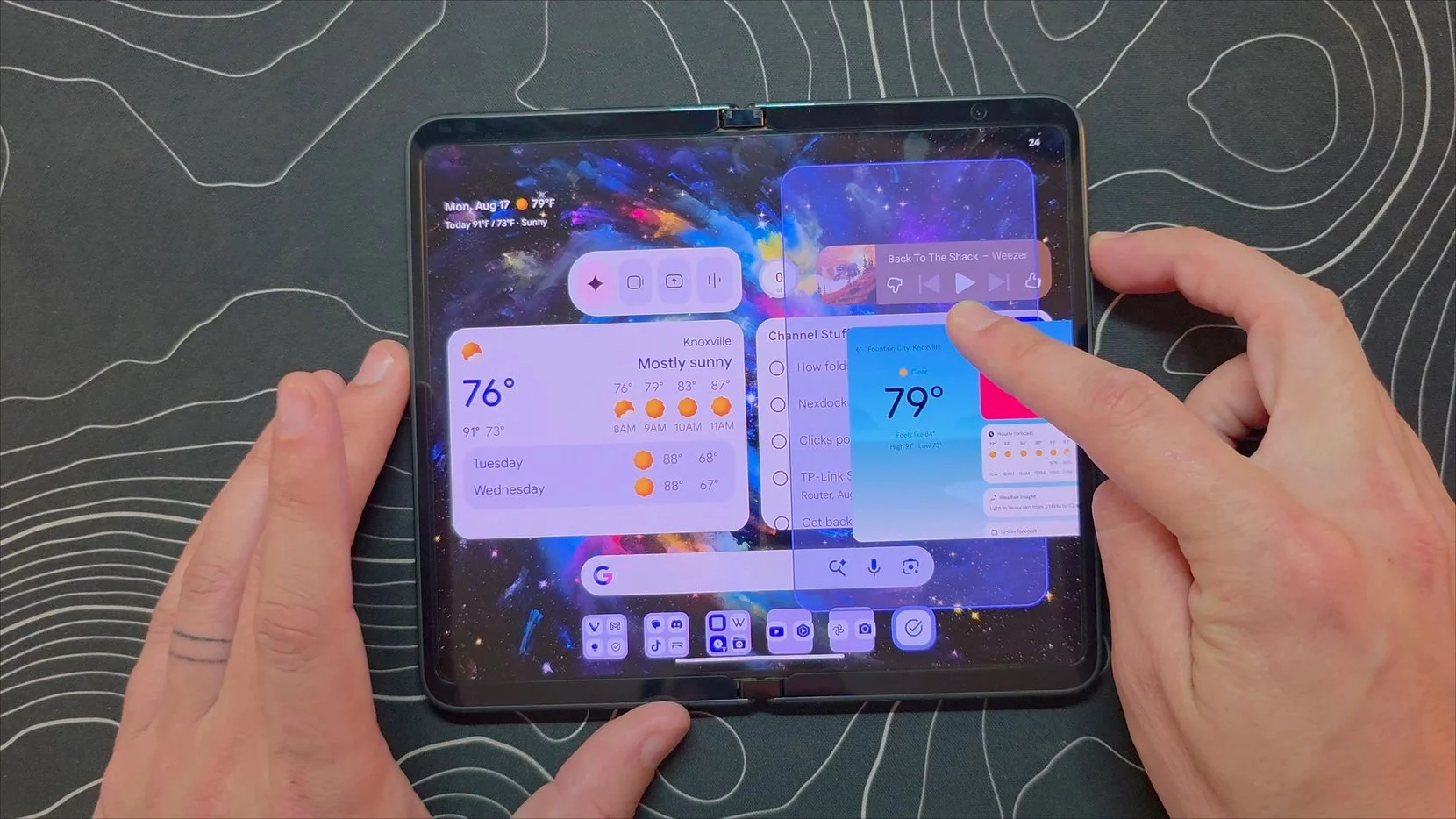
The standout change in this beta is the updated multitasking workflow. Fullscreen applications now feature a small handle along the top edge.
Long pressing that handle allows you to drag the app into split screen on either side of the display. The best part of this implementation is what happens when you drop the window into position: the device immediately shows your home screen.
Unlike interfaces on other devices that force you into a full app drawer, showing the home screen lets muscle memory take over. Most people keep their primary apps pinned right where they expect them, so picking a second app to pair is instant and seamless.
Dragging an existing split app also lets you reposition or swap windows smoothly. Google has also tied this into the Bubble Everything system. Dragging the top handle downward sends the application into a minimized floating bubble on the bar at the bottom. While it is not quite as freeform as Samsung's floating pop-up windows that stay pinned over any screen, it provides a handy way to keep background utilities accessible without cluttering your workspace.
Opting In and What to Keep in Mind
Anyone with an eligible Pixel device can try out these features by heading to the Android Beta portal at google.com/android/beta and enrolling their device. Once enrolled, the update arrives through the standard system update menu.
Keep in mind that QPR betas come with a catch when leaving the program. If you decide to opt out before the beta cycle finishes, rolling back to the stable channel requires a full device wipe and factory reset. To leave without wiping your phone, you have to wait until the stable release arrives at the end of the beta period. If you rely on your phone as a primary daily driver and do not want to risk a reset, waiting for the public launch later this year is the safest bet.
Double-click to edit...