Top 8 Android 17 Features
Android 17 is officially out and rolling out right now to Pixel devices. While there are a ton of changes under the hood, there are definitely some cool new features packed into this build. Here is my breakdown of the top eight new features in Android 17 that you need to know about.
1. Universal Bubbles (Bubble Everything)
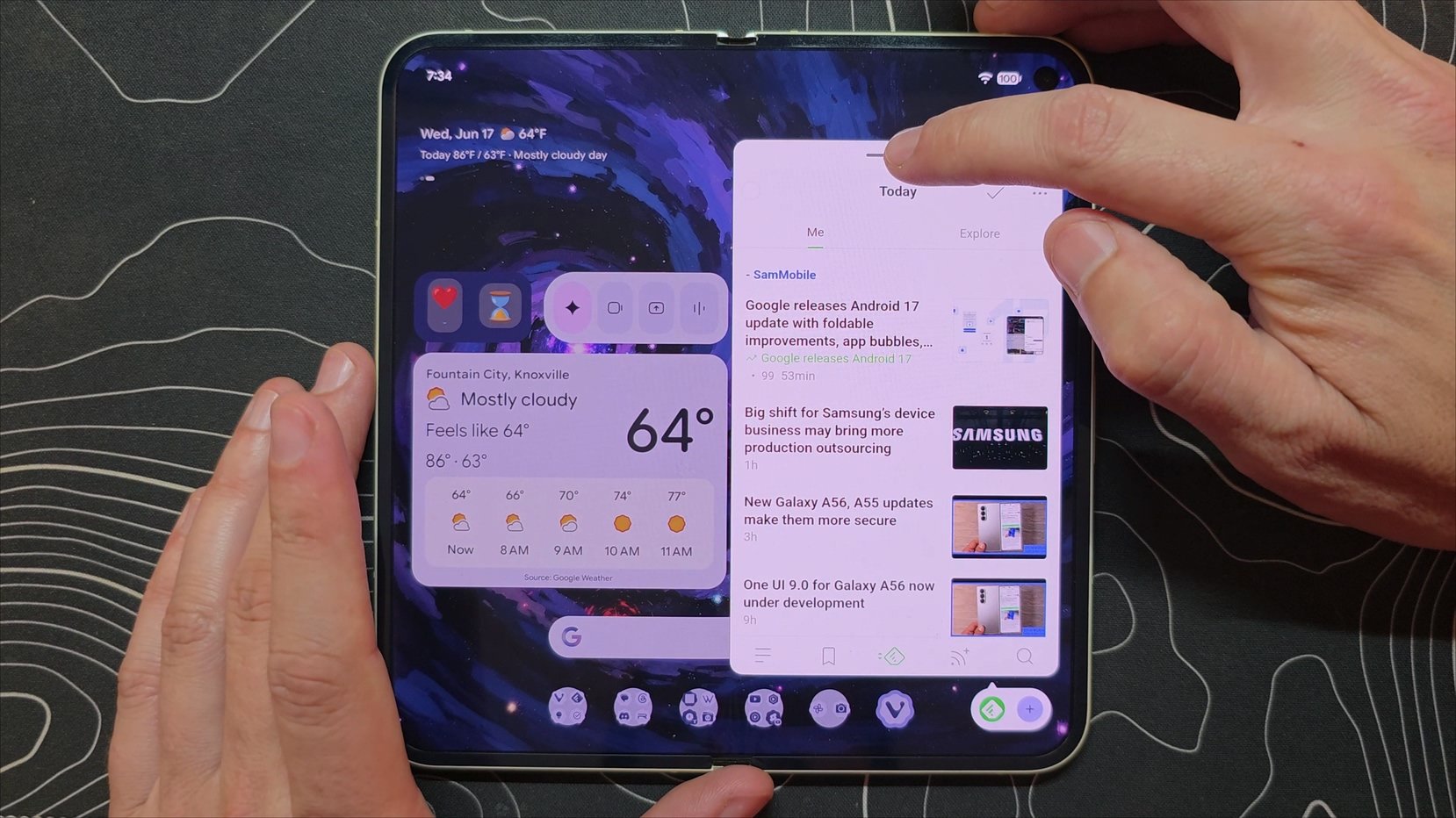
The number one feature introduces a new way to multitask on Android. If you long-press an app icon, you will see a new "bubble" option. Tapping it opens that application in a floating bubble that lives in a section at the bottom called the bubble bar.
It is important to know that this is not a true, full floating window replacement. You cannot resize these windows or properly move them around wherever you want. If you try to interact with another full-screen app, like opening a web browser, the bubble won't stay present, it immediately minimizes itself. It is meant to be a quick reference tool where you pop it up, do what you need to do, and go right back to your main app. You can even stack multiple bubbles down there to quickly reference later.
There are some interesting quirks in this initial release. If you click a link inside a bubbled app, it opens the link in an additional floating bubble rather than launching the full-screen browser you might already be using. It feels a little glitchy, similar to the carousel view on the Razer Fold when opening links. While it is not a perfect floating window replacement, it is definitely better than nothing.
2. Expanded Transparency and Blur Effects
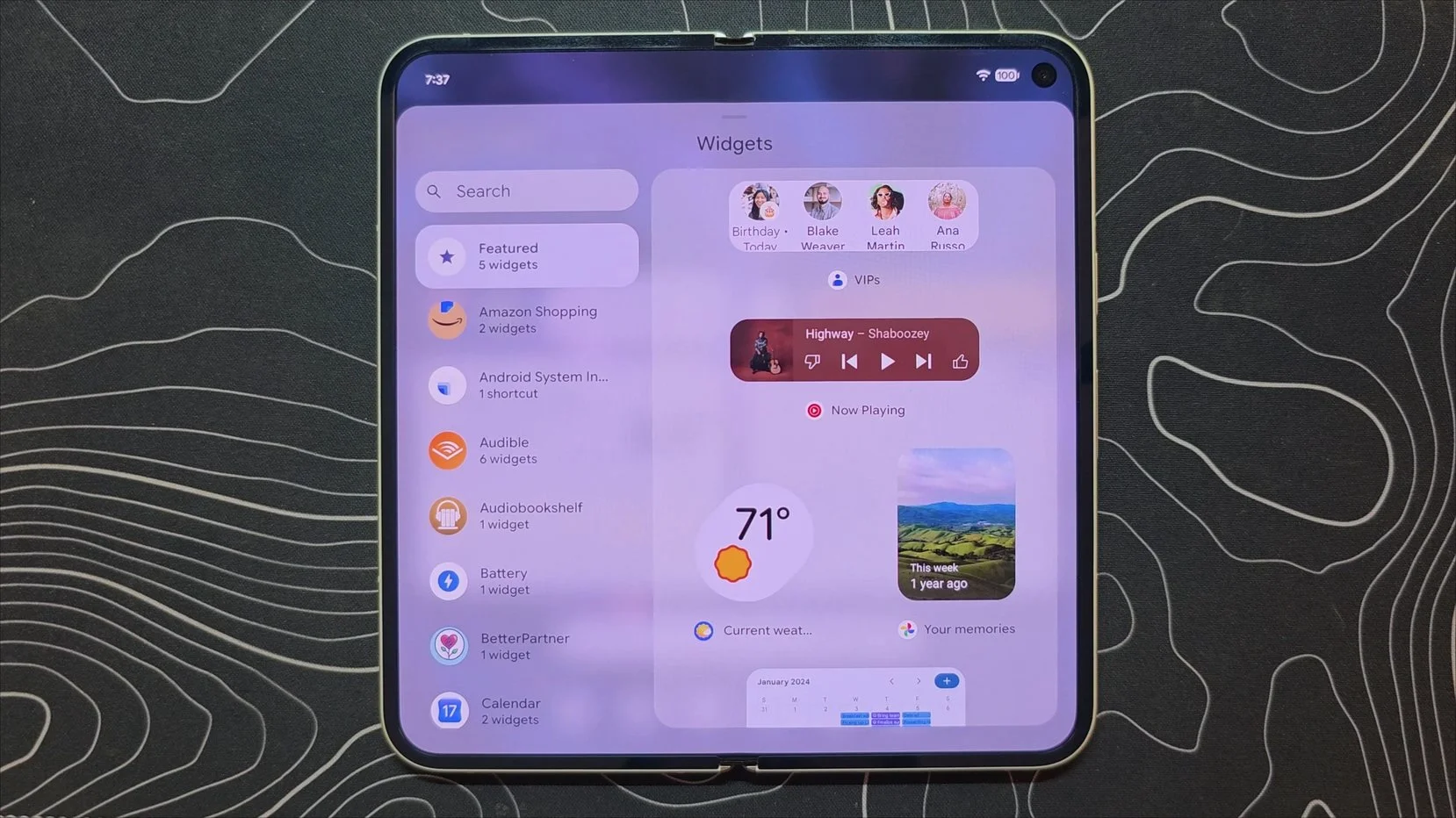
Google is continuing to roll out its transparency effects, expanding that frosted glass look into more places. The new depth-of-field blur has now been added to the widgets panel, and it looks really good.
In typical Google fashion, the rollout is a bit piecemeal. There are still plenty of places left in the operating system that don't have this blur going on. While we have seen more of this design language in recent betas, the stable build is just another step in the right direction. It will probably take three or four more steps before this look is fully rolled out across the whole system.
3. Hide App Labels for a Cleaner Home Screen
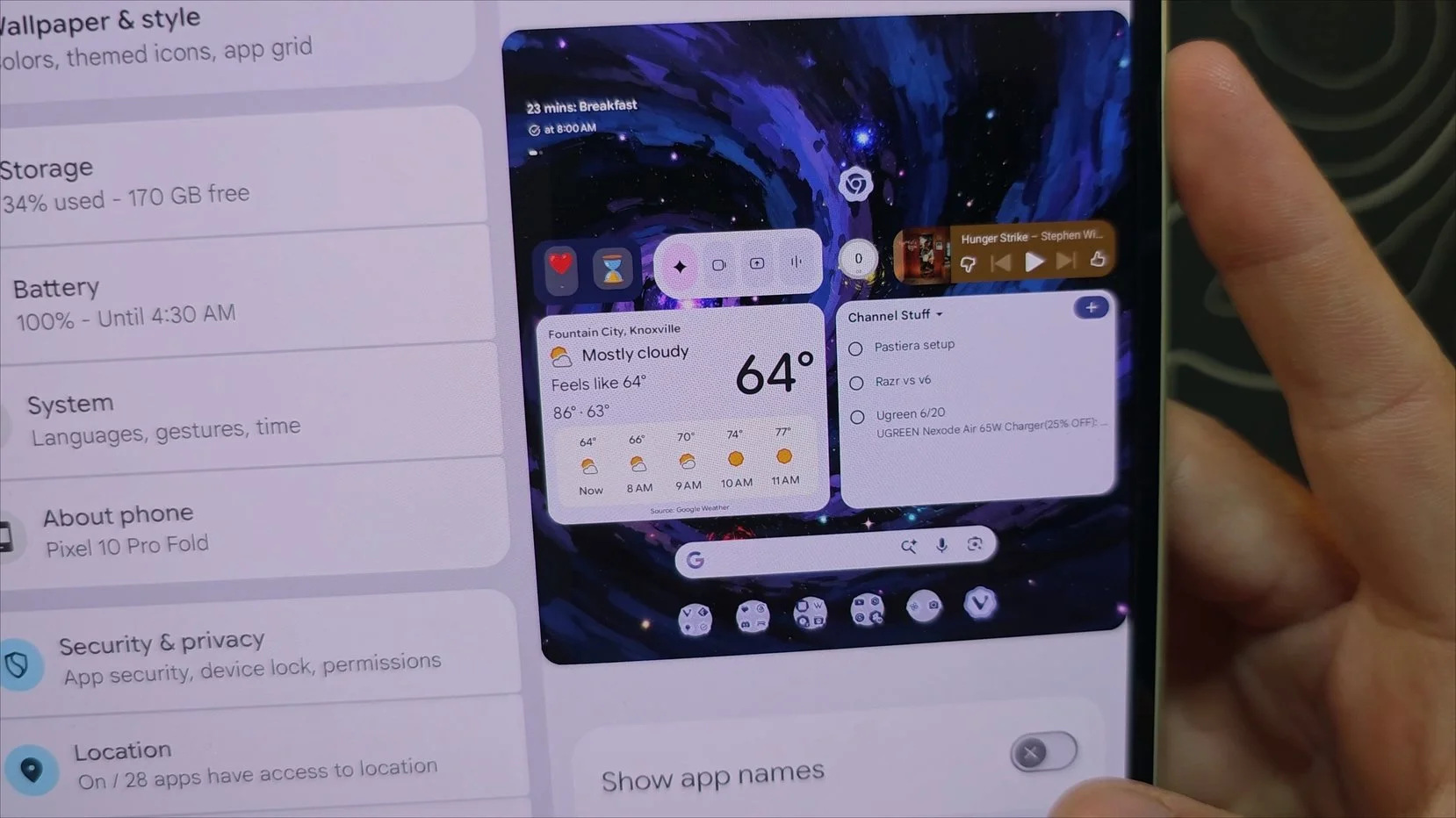
If you jump into your Wallpaper & style settings and navigate down to the icons menu, you will find a new option to remove app labels.
Toggling this box makes the text labels underneath your apps disappear. If most of your apps are already organized inside folders, this change won't really apply to those, but for standalone icons, it gives you a great option for a much cleaner look.
4. Per-App Dark Theme Toggles
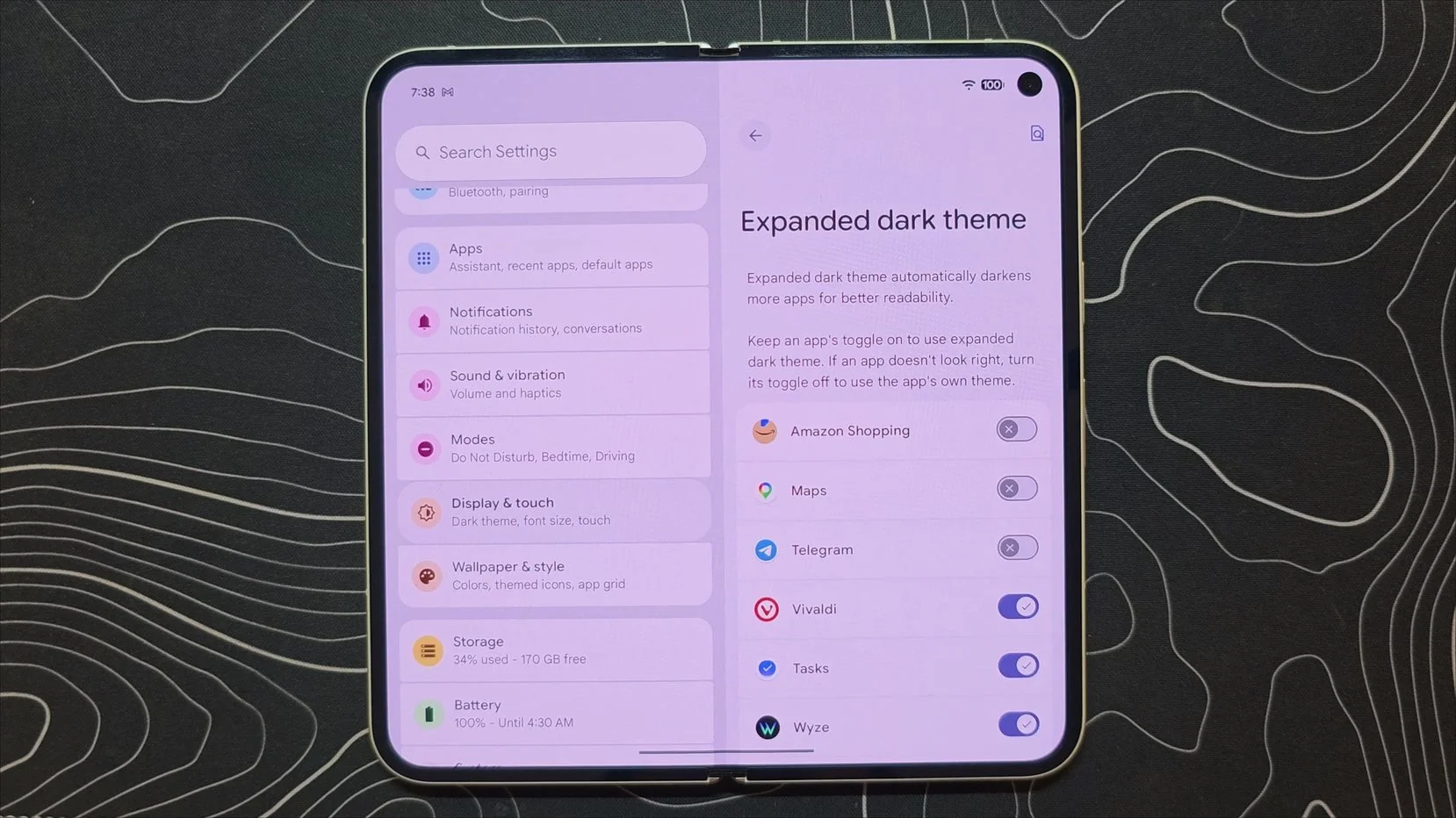
If you head into Settings > Display & touch > Dark theme, you will find a fix for a common annoyance. You might remember that Google previously rolled out an expanded dark theme that forces apps into a dark mode even if they don't natively support it.
The issue is that some apps just don't look great when that happens, and the forced theme can break them. Android 17 solves this by letting you disable the forced dark mode on a per-app basis. If an important app gets broken by the automated system, you can just turn it off for that specific app rather than losing the feature entirely.
5. Screen Reactions for Content Creators
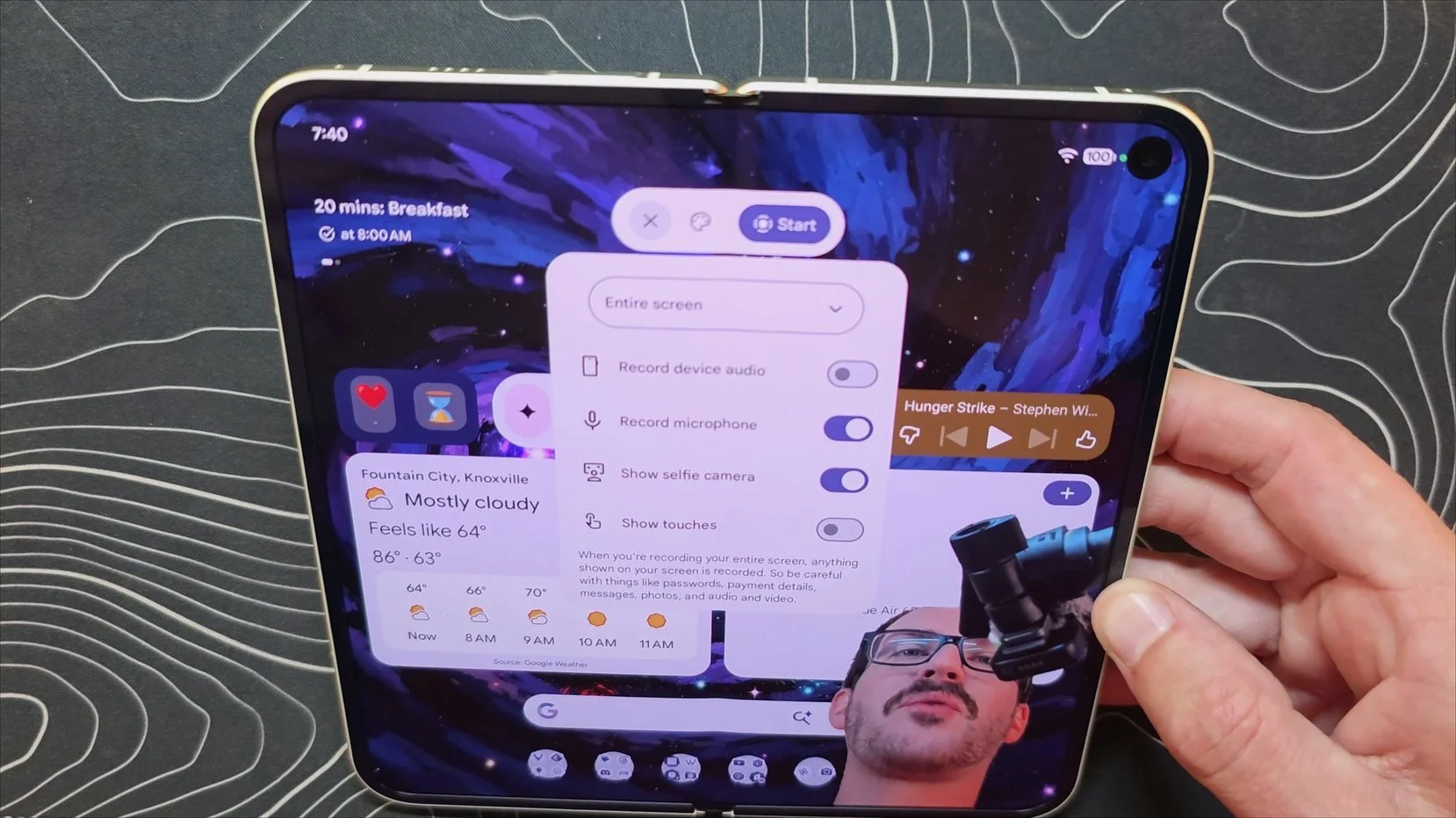
Built directly into the native screen recorder is a new option to show your selfie camera while capturing your screen.
When you turn this on, a floating bubble appears that captures your face and uses a live cutout to remove your background in real time. You can move this bubble around and expand it, letting you record a live reaction video right over your screen content. The live cutout feature actually works incredibly well, even if the camera angle from holding the phone isn't always the most flattering.
6. Foldable Gaming Mode and Built-In Button Remapping
If you look at the Google blog, there is a really cool gaming feature that is in Android 17, though it is not fully activated just yet. When you put a foldable device into a laptop posture, a virtual touch gamepad appears on the bottom half of the screen while the game runs on the top half.
If you are a mobile gamer, your first thought is probably that games would have to natively support this layout to work. Microsoft tried a similar concept with the Surface Duo, but virtually no games supported it, so it didn't go anywhere. The reason Google's approach is a big deal is because they are building native button remapping directly into the core Android system.
Whether you are using the virtual touchscreen controller or a physical controller clamped onto your device, you will be able to map a physical controller button to tap a specific spot on your touchscreen. While plenty of third-party utilities have tried to do this, a lot of them are finicky and a little sketchy, so having it built natively into Android is a game-changer.
This might cause some issues in competitive mobile gaming scenes, since using a physical controller can be a lot more accurate than using a touchscreen. For anyone who absolutely cannot game on a touchscreen, this is huge.
7. Continue On
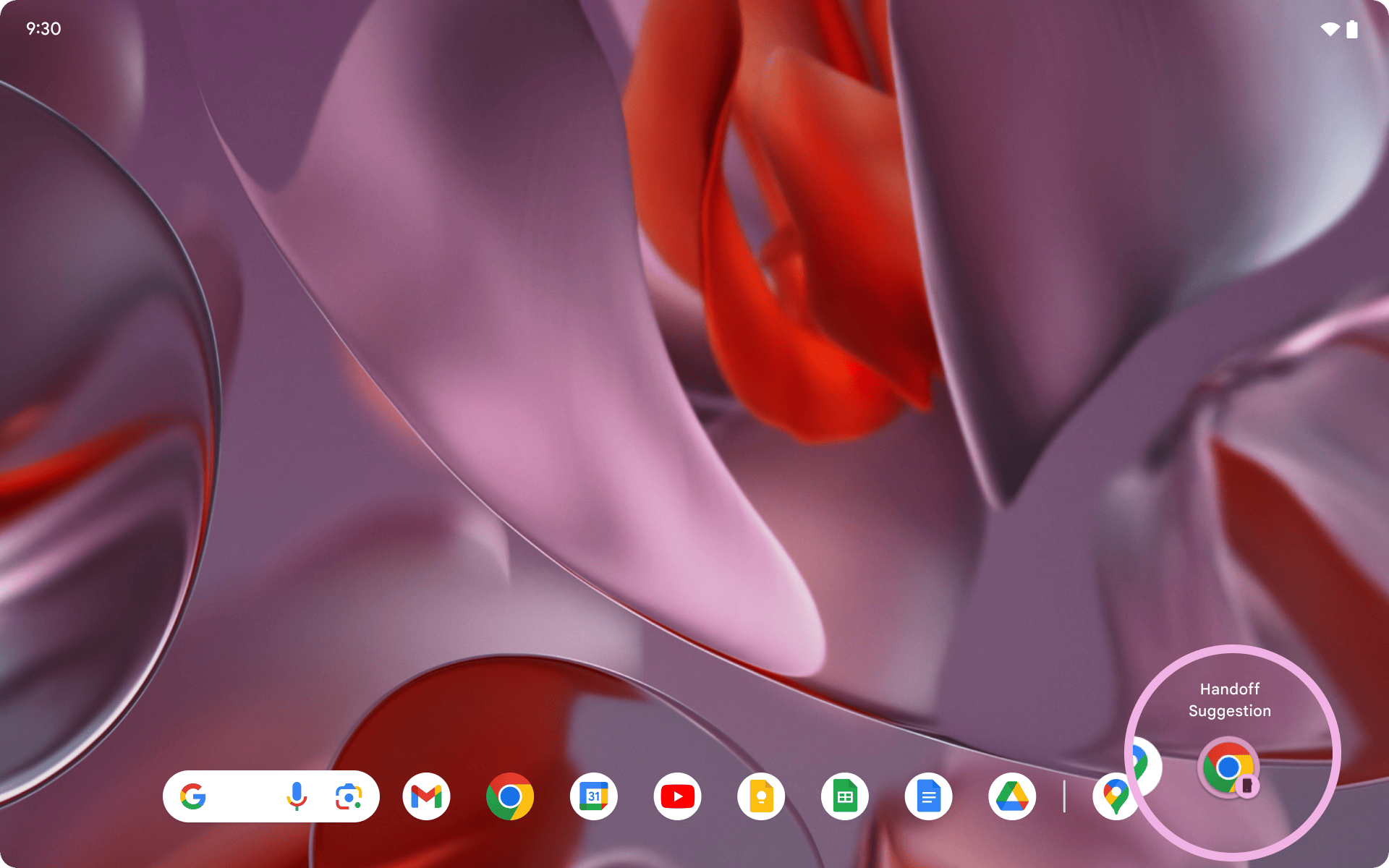
Another new feature rolling out with Android 17 is Continue On, which has big implications for the ecosystem. If you look at Google's promotional images and animations, you can see this running on an Android tablet. When you switch devices, a little handoff suggestion pops up in the bottom corner with a phone icon.
If you were just using Chrome or editing a document in Google Docs on your phone, you can move over to your tablet, tap that suggestion, and pick up exactly where you left off. In typical Google fashion, this feature will probably roll out quite slowly across different devices. Once it proliferates and gets everywhere, this could easily end up being the biggest feature of the entire update.
8. Expanded Parental Controls
The final major update brings expanded parental controls directly into the main system settings. This gives parents much more granular control over what a child is doing with their phone.
Through these built-in settings, parents can set the exact amount of daily screen time a child is allowed, create custom downtime schedules, set filters for the app store, and limit or completely block specific applications.
There is a lot more packed into Android 17 than just these main pillars. This is simply a breakdown of the eight biggest features in the update.
If you want to dig through all the smaller things, check out the link in the description down below to the Reddit post by Mishaal Rahman, where he broke down seemingly everything.
Thanks for watching, guys. Subscribe for more content like this, and until next time, stay nerdy, my friends.