Moto Razr Fold Multitasking and Productivity Deep Dive
If you are looking to get serious work done on a foldable, Motorola has built a legit contender. Following the initial unboxing and first impressions of the Moto Razr Fold, it is time to look deeper at the productivity and multitasking features on this brand new device to see how they stack up against the competition.
From hidden gestures to desktop replacement modes, the software here is packed with features that transform this phone from a simple foldable into a genuine productivity powerhouse.
Mastering the Split Screen and Free Form Windows
Getting into split screen multitasking on the Razr Fold is incredibly flexible, and Motorola offers a handful of different ways to trigger it.
Entering Split Screen
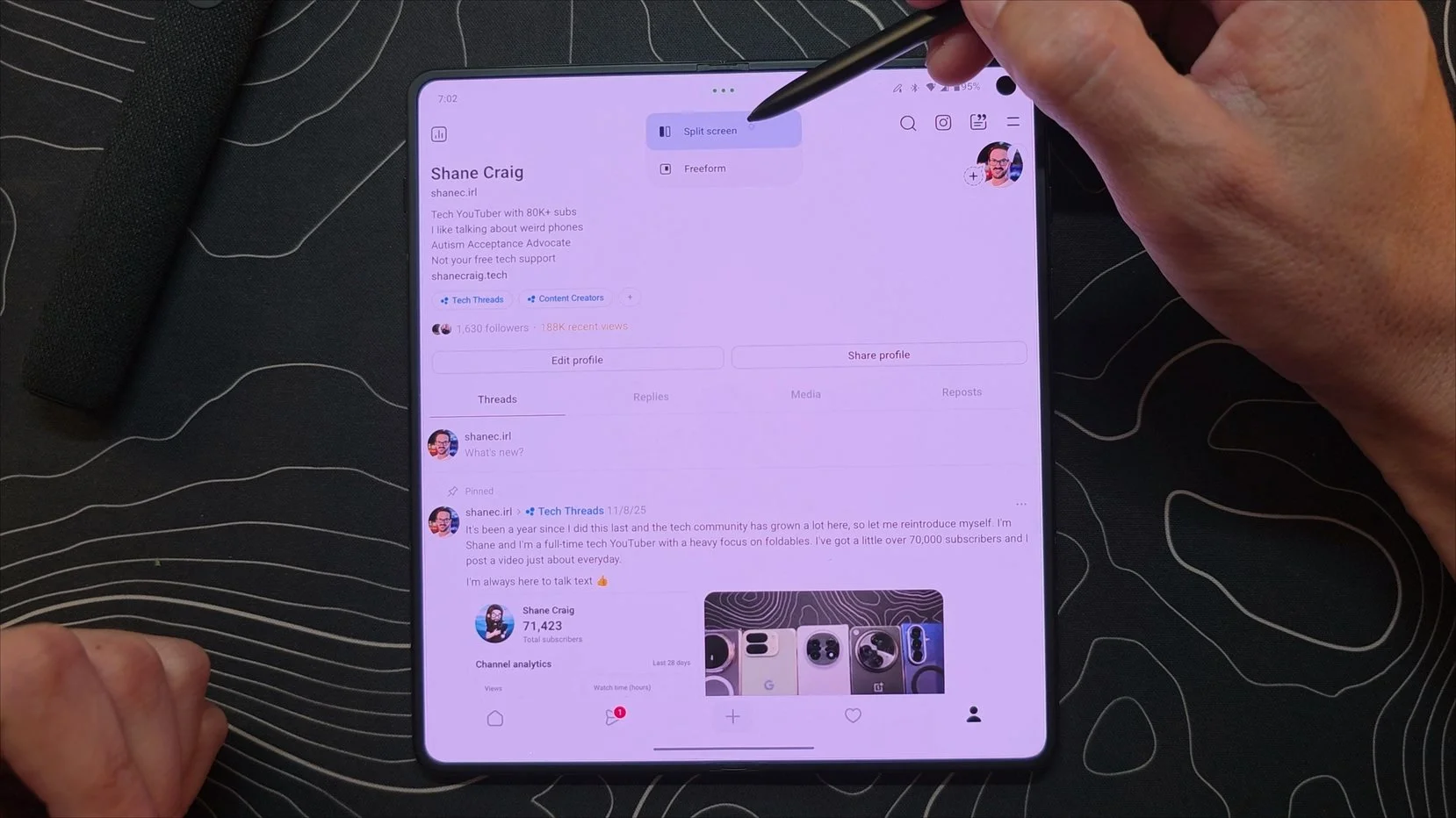
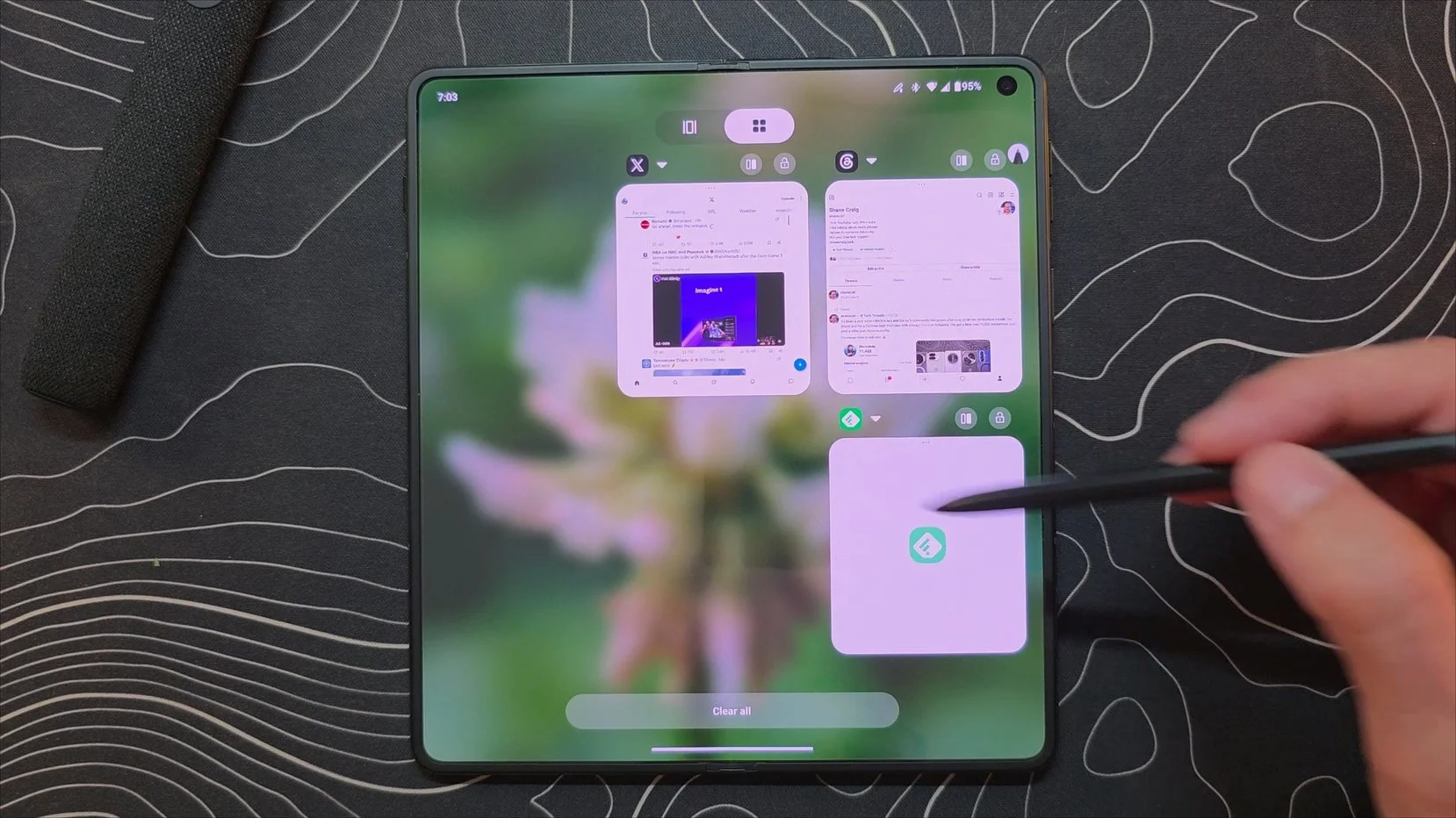
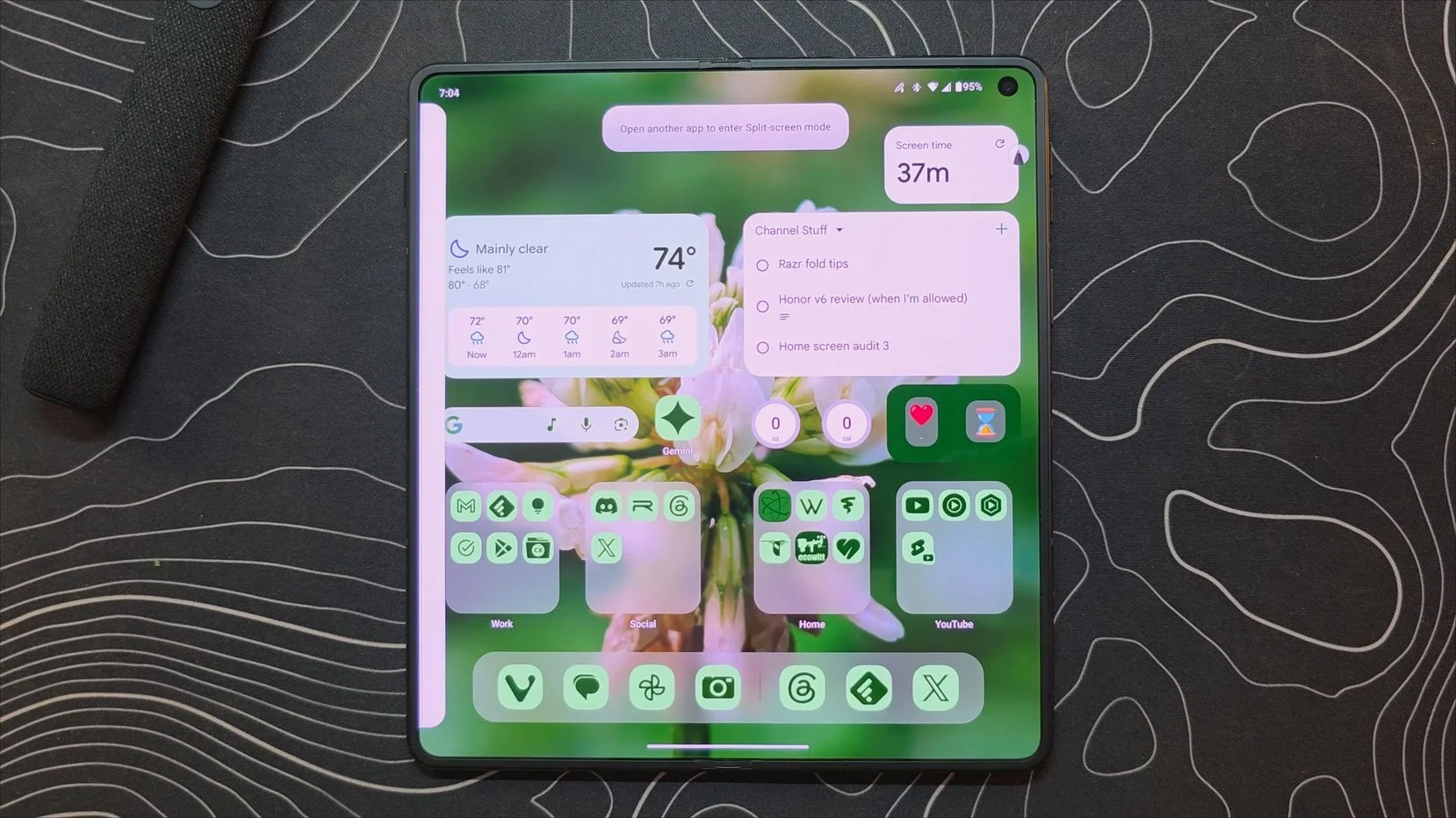
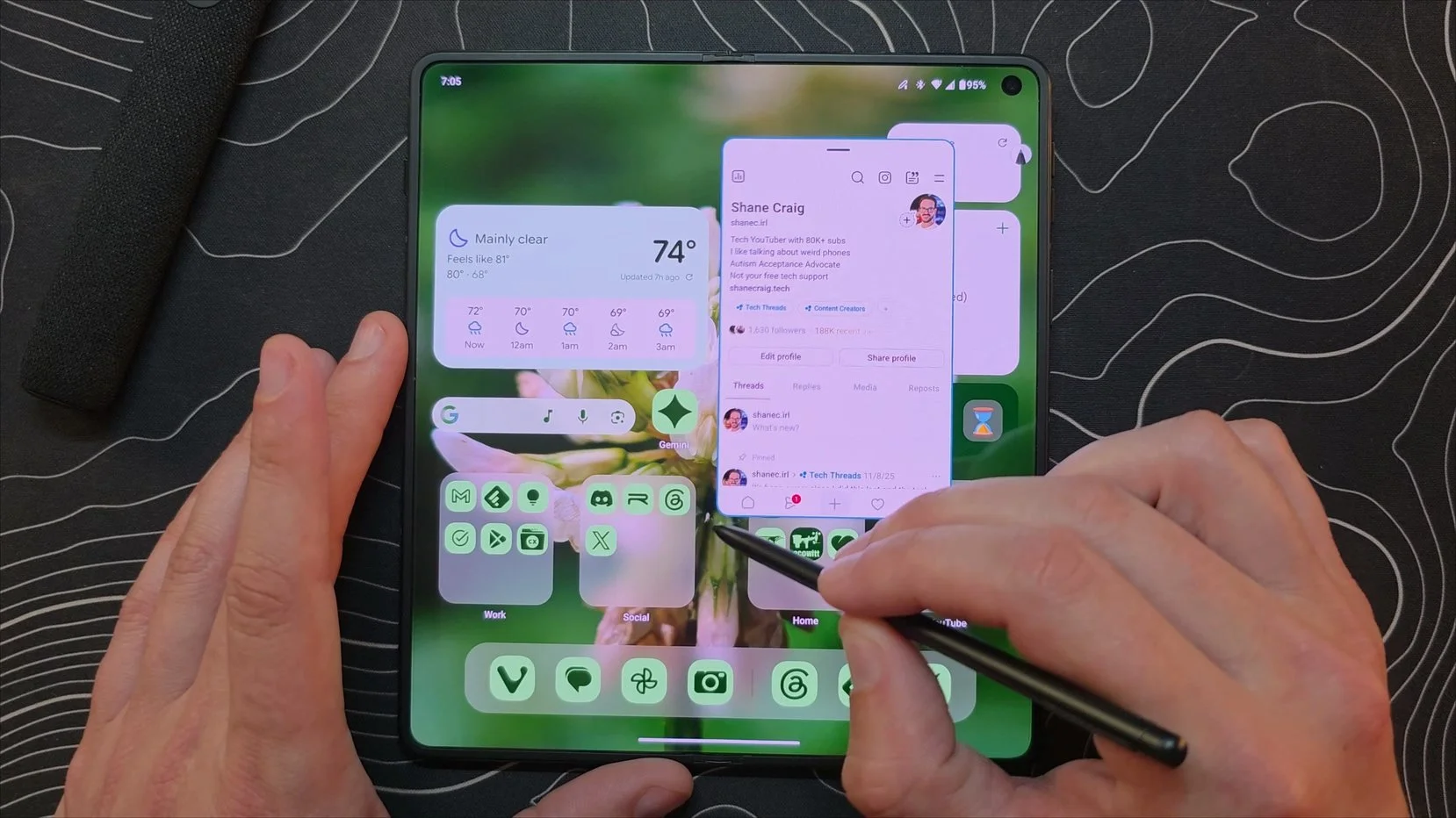
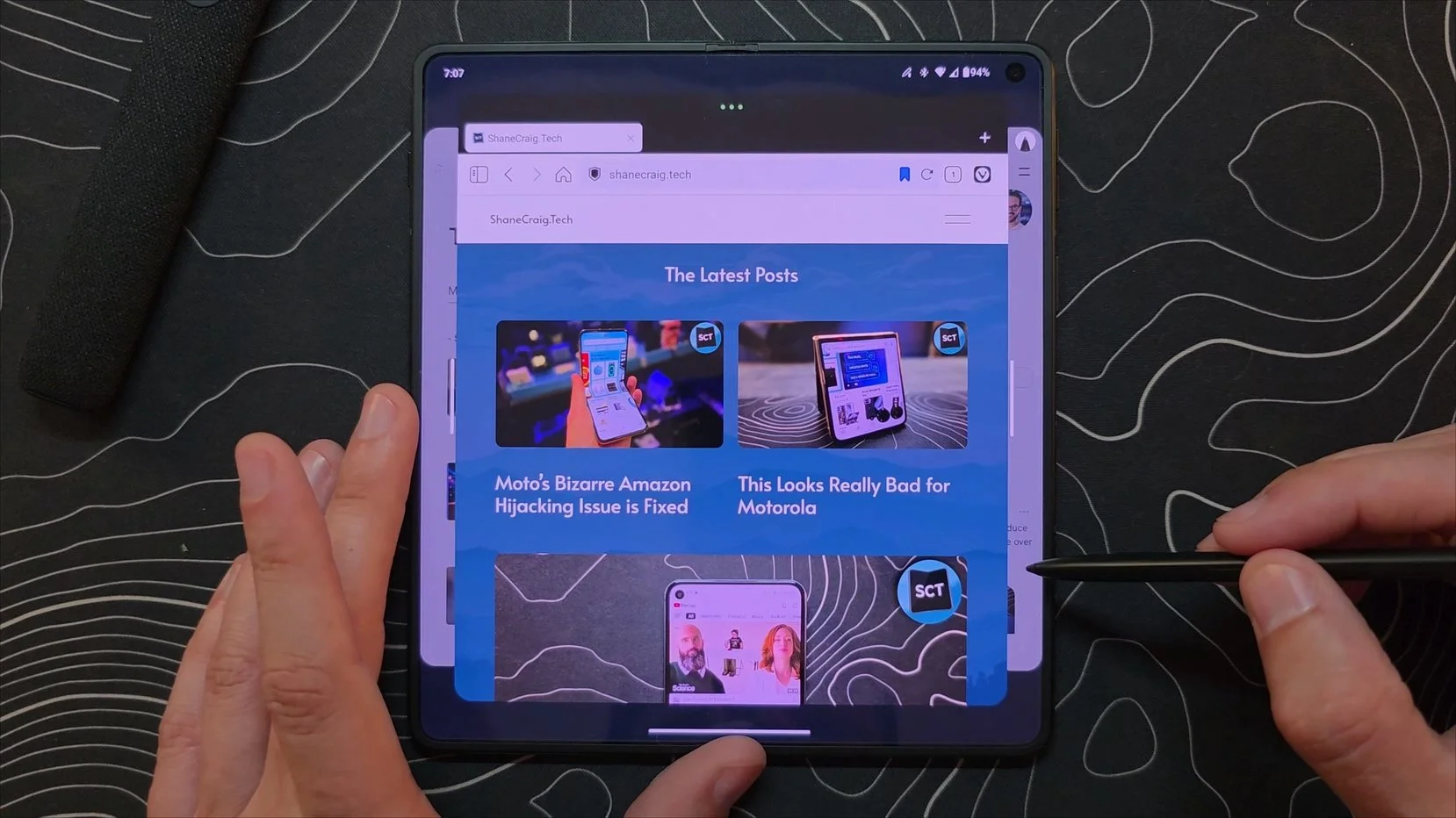
The most direct method is tapping the three little dots at the top of any open application. This pulls up an immediate option for either split screen or a free form window.
If you prefer using the recent apps overview, swiping up and holding reveals your open apps. Out of the box, this menu displays in a standard horizontal lineup, but a quick tap of the toggle switches it into a highly fluid grid view. Every app in this view features a dedicated split screen icon.
For the fastest execution, Motorola includes an excellent three-finger swipe gesture. Swiping three fingers in from any side of the screen instantly pushes your current app to the half of the display, revealing the home screen so you can pick your second application.
Understanding the App Carousel
Once you are in split screen, tapping the center divider handle lets you swap app positions instantly or save the pair as a dedicated "app combo" shortcut on your home screen for one-touch launching.
Resizing the split works a bit differently than on standard Android devices. Dragging the center handle doesn't just change the app ratios, it shifts the interface into a unique carousel view. This places one app in full screen while the second app sits just behind it, accessible with a simple tap.
The real magic happens when you swipe up to bring up the permanent taskbar or app drawer and drag a third application into the mix. You can cycle through three apps smoothly side-by-side, mimicking a layout similar to Open Canvas. Motorola even allows you to stack multiple floating free form windows right on top of this three-app layout without any performance lag.
Free Form and Sidebar Management
Free form windows are easy to manipulate. You can drag them around, hide them off-screen into tiny floating icons, or minimize them into a corner. The only limitation is that you can only scale the size of the window, you cannot change its aspect ratio or shape.
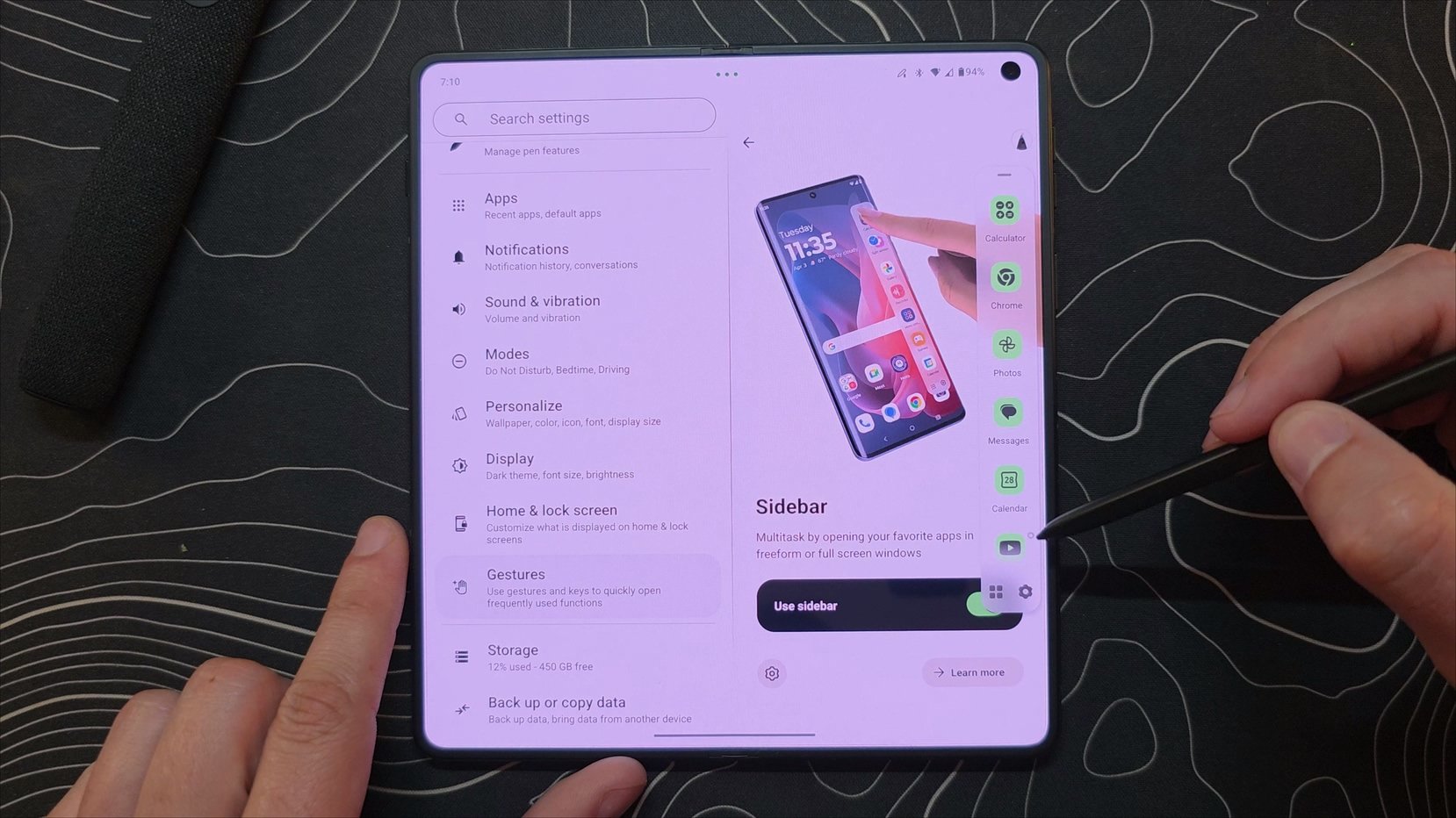
If you want more immediate access to these windows, enabling the Sidebar adds an edge tab to your screen. Swiping it open reveals your favorite apps, and tapping any of them launches the app straight into a floating free form window. The system handles at least four of these active floating windows simultaneously without breaking a sweat.
Desktop Power with Mobile Desktop Mode
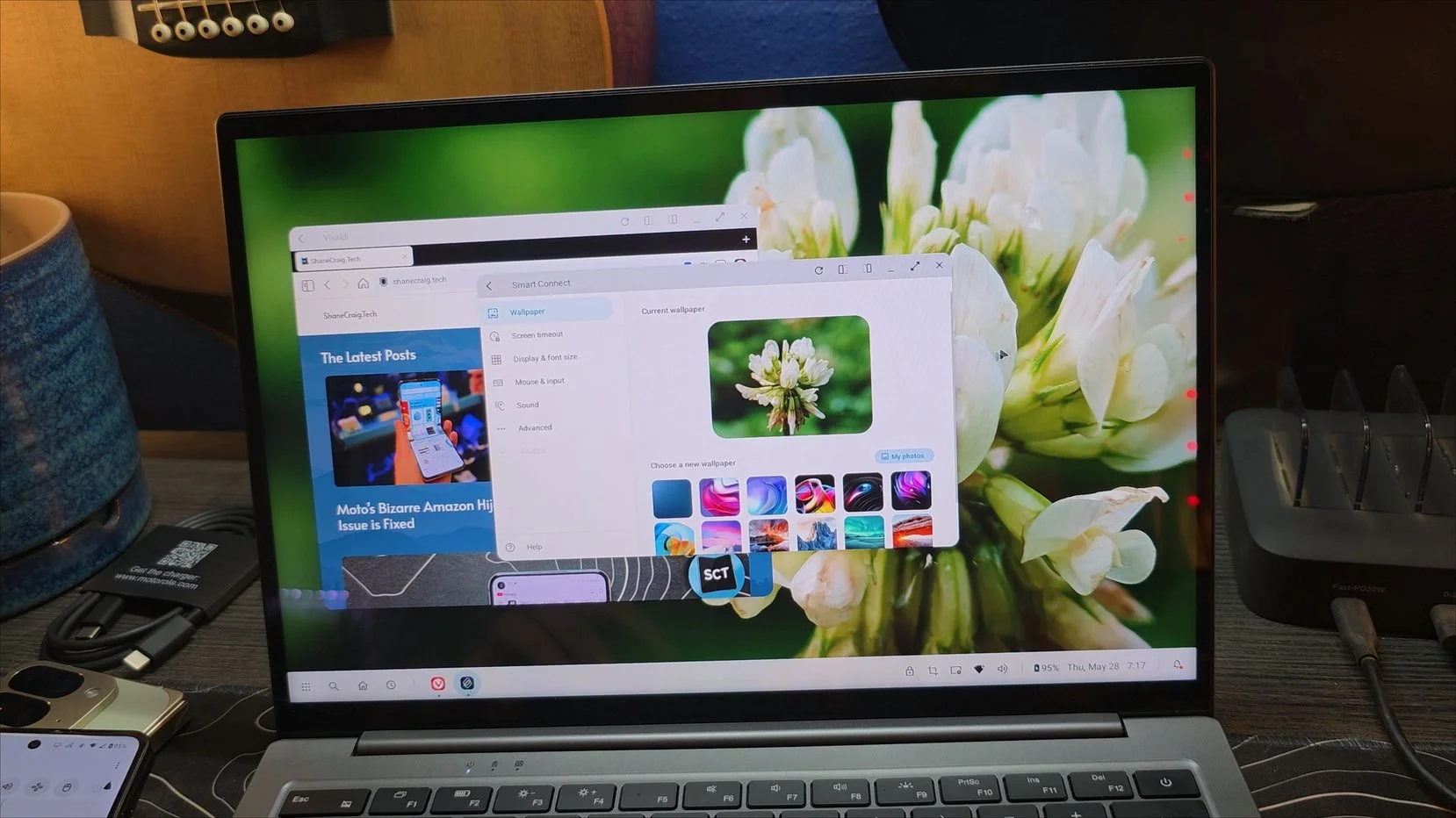
For true productivity, plugging the Razr Fold into a lap dock via USB-C unlocks Motorola's version of a desktop environment, known as Mobile Desktop. This is a direct competitor to features like Samsung DeX, turning your phone into the brains of a laptop.
Once connected, the phone screen can act as a giant trackpad with full two-finger scrolling support. The external monitor displays a fully realized desktop interface where apps open in completely resizable, reshapeable windows that can be pinned to the left or right sides of the screen.
Remarkably, the interface remembers your exact window layouts. If you unplug the phone and plug it back in the next day, your windows snap right back to where you left them.
Wireless Continuity with Smart Connect
The ecosystem features get even better if you pair the Razr Fold with a Windows PC using the Smart Connect app. Rather than just mirroring your phone, it integrates the two operating systems seamlessly.
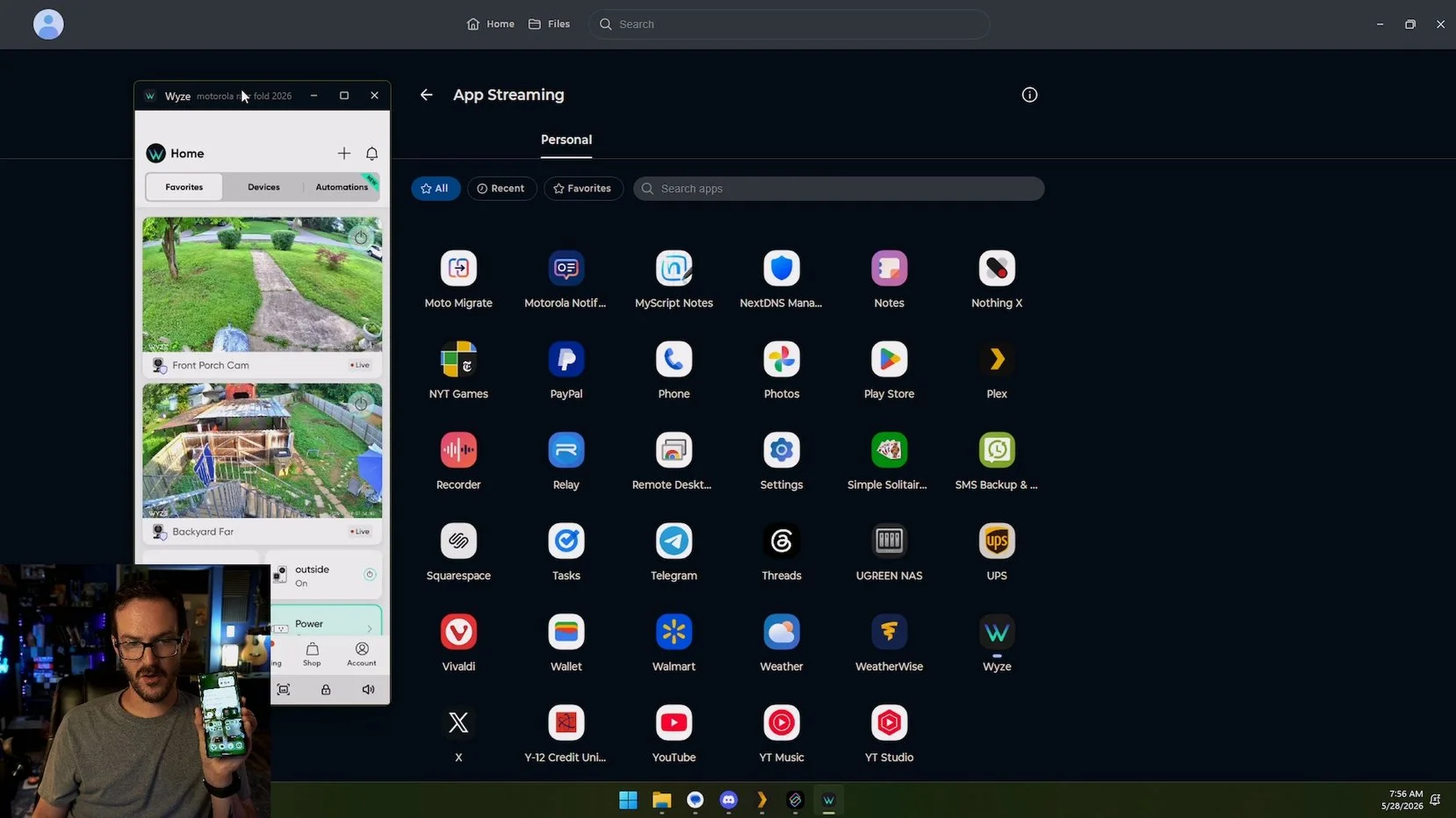
App Streaming: You can open any phone app inside a window on your PC. The app streams directly from the hardware, leaving your actual phone completely unoccupied to do other tasks.
Cross Control: This feature lets you map the physical position of your phone relative to your PC monitors. You can slide your PC mouse cursor directly off your computer monitor and straight onto the phone screen, allowing you to control both devices using a single mouse and keyboard.
File and Notification Sync: Managing notifications, text messages, and transferring files between the PC and the phone happens instantly in the background.
Motorola also includes excellent smaller quality-of-life additions like Multi-Volume, which lets you control individual audio levels per application so a background media app never overpowers a work call.
Ultimately, Motorola has assembled a productivity suite that easily stands on the same level as the best foldables on the market. Whether you are managing multiple floating windows on the inner display or running a dual-screen workspace with Cross Control on your PC, this device proves that foldables are no longer just a novelty, they are genuine tools for getting work done.