Unihertz Titan 2 Elite: GCAM is a Must
Update: Thanks to a community member, there is now a port of GCAM for the Titan 2 Elite that resolves most of the quirks the version below had. I highly advise using this instead: https://www.reddit.com/r/unihertz/comments/1vzxax6/gcam_port_for_the_unihertz_titan_2_elite_square/
I just got my hands on the Titan 2 Elite the other day, courtesy of the team over at Unihertz, and I have been putting it through its paces. On paper, this thing looks like it should be able to deliver some decent shots with its 50 megapixel primary sensor paired with another 50 megapixel telephoto lens.
The hardware is definitely there, but the actual results tell a different story. To put it bluntly, the software processing is leaving a lot to be desired right now. I am seeing consistent issues with photos being overexposed, which washes out the detail in the highlights. Even more disappointing is the telephoto performance, which is coming across quite noisy even in decent lighting. It is clear that the 50 megapixel labels are doing a lot of heavy lifting for sensors that are being held back by their own internal tuning.
Because of that, I turned to a familiar source looking for a GCam port. This has been something that people have turned to for years when the stock processing just isn't good enough, and I wanted to see if it could save the day here. After looking around, I found that several 8.5 and 8.4 builds worked, and I eventually settled on the LMC 8.4 port from Hasli.SGCAM 8.5 also showed promise, but will also need more testing.
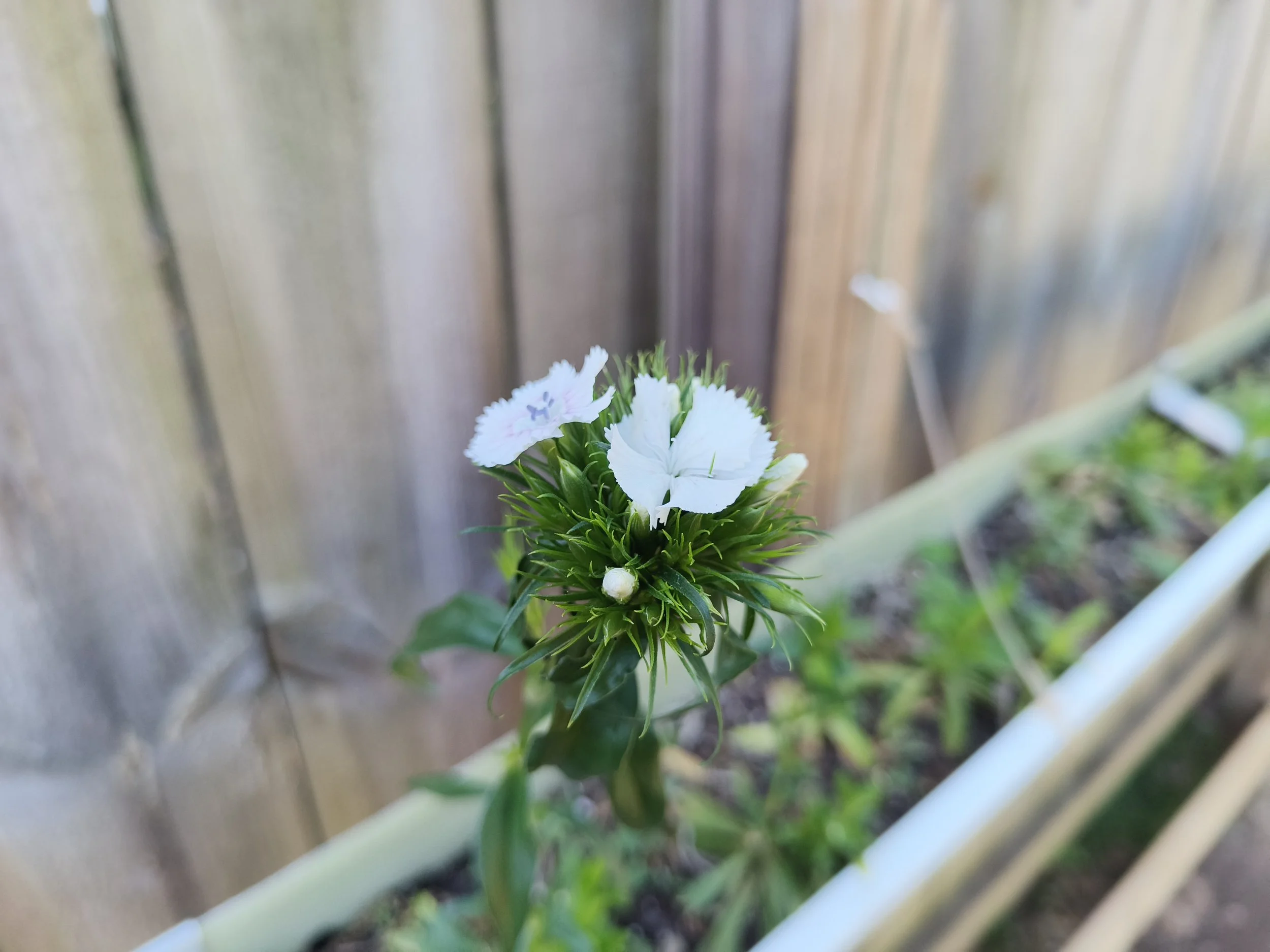
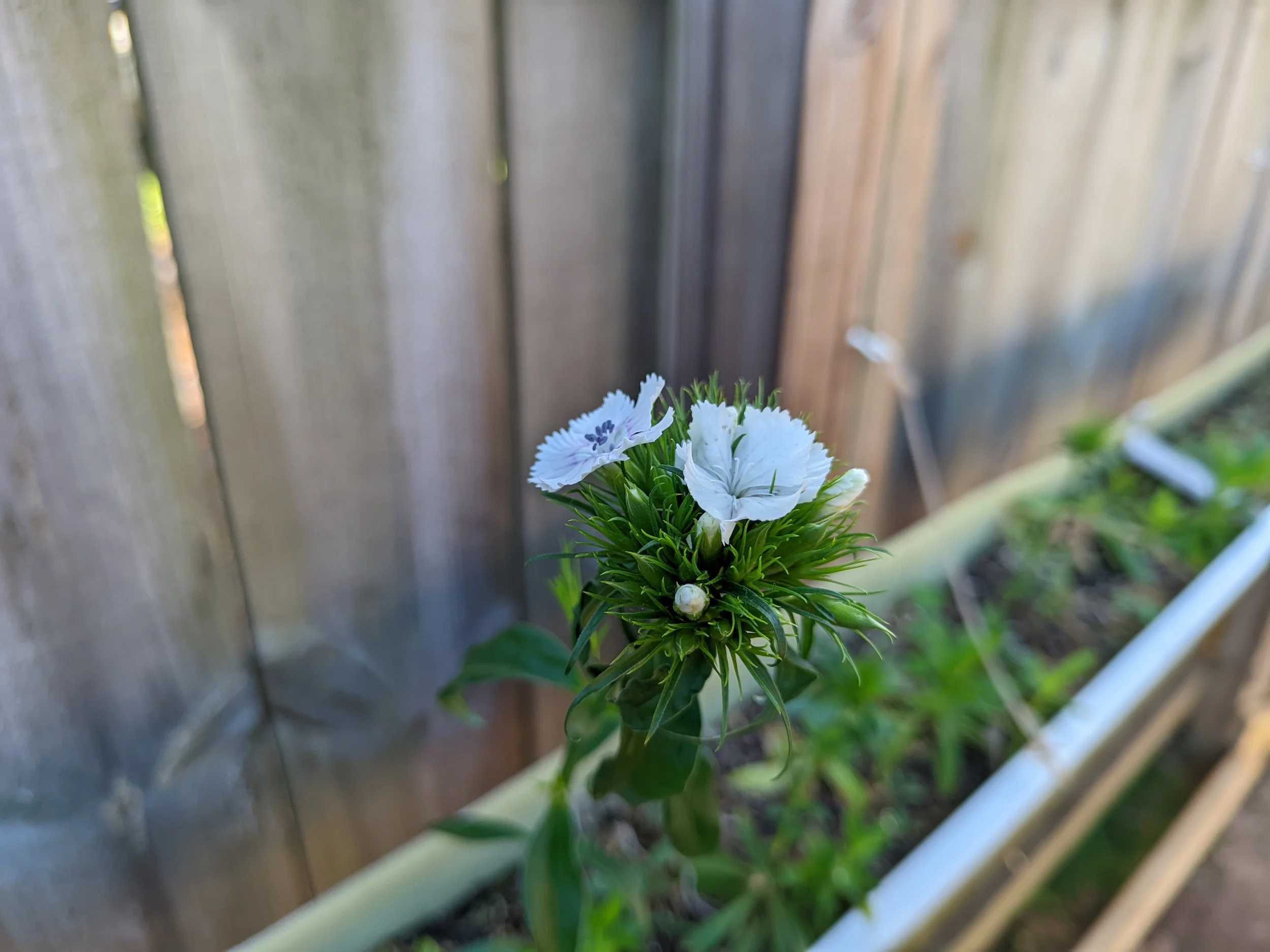


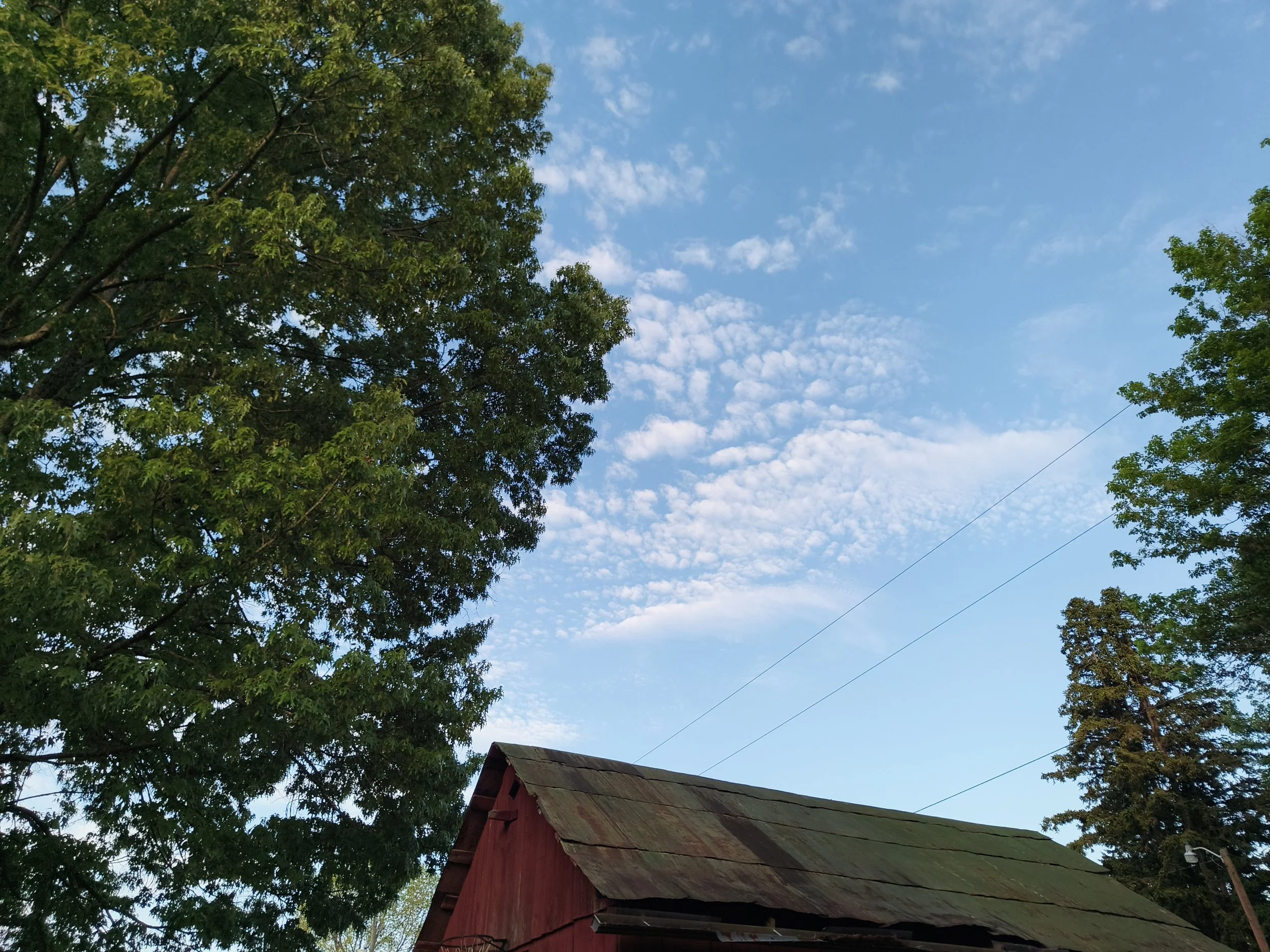
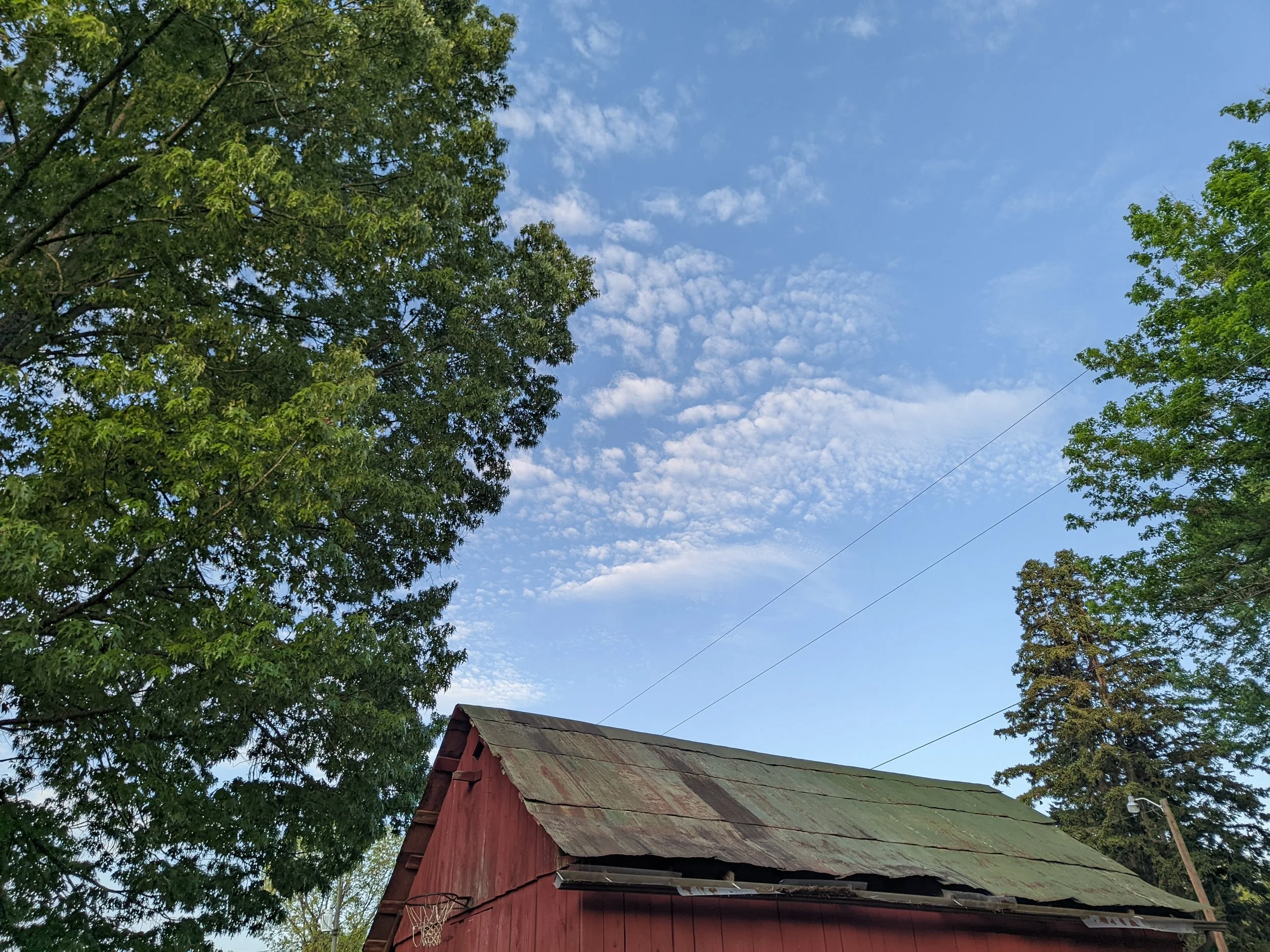

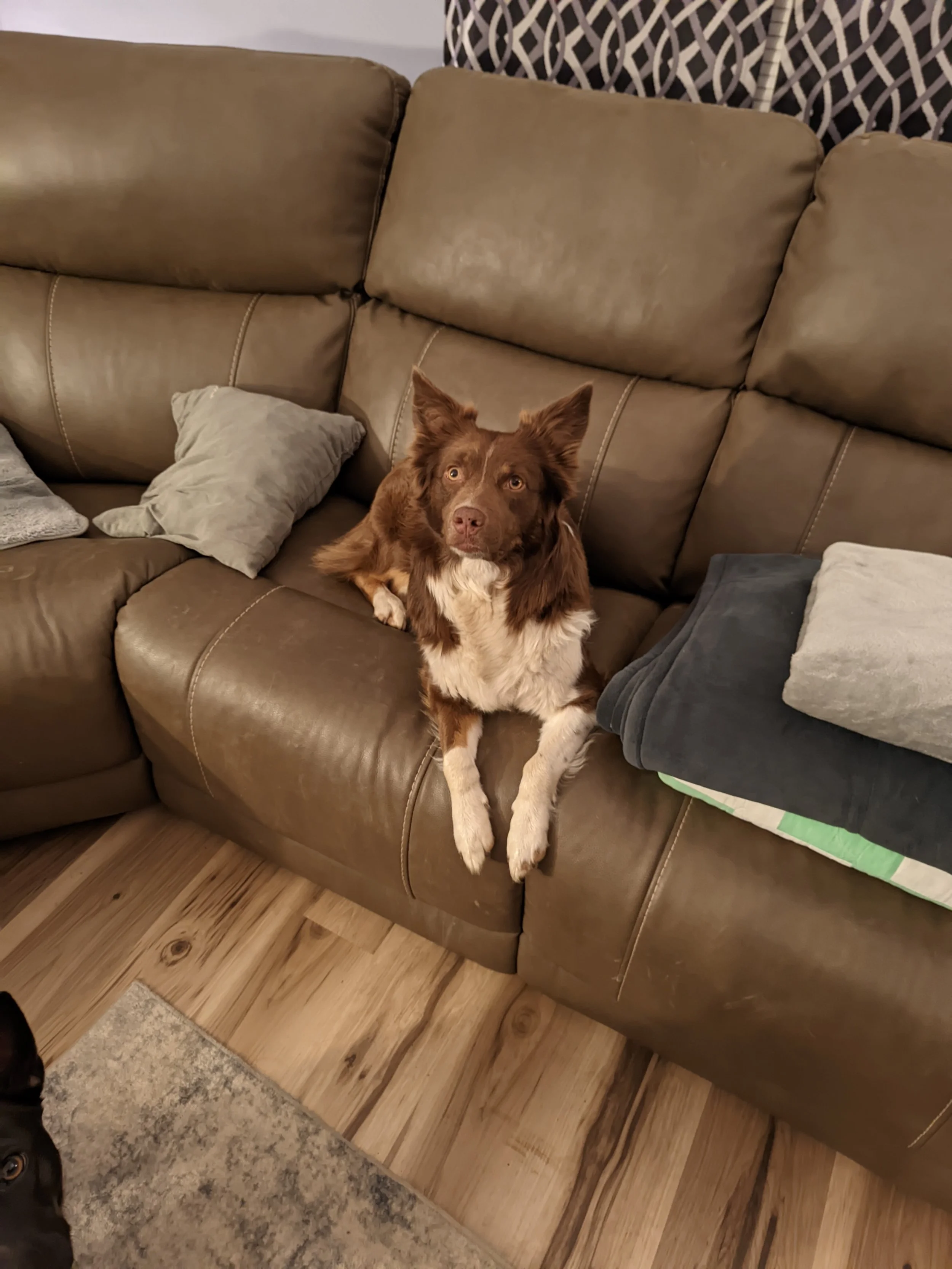
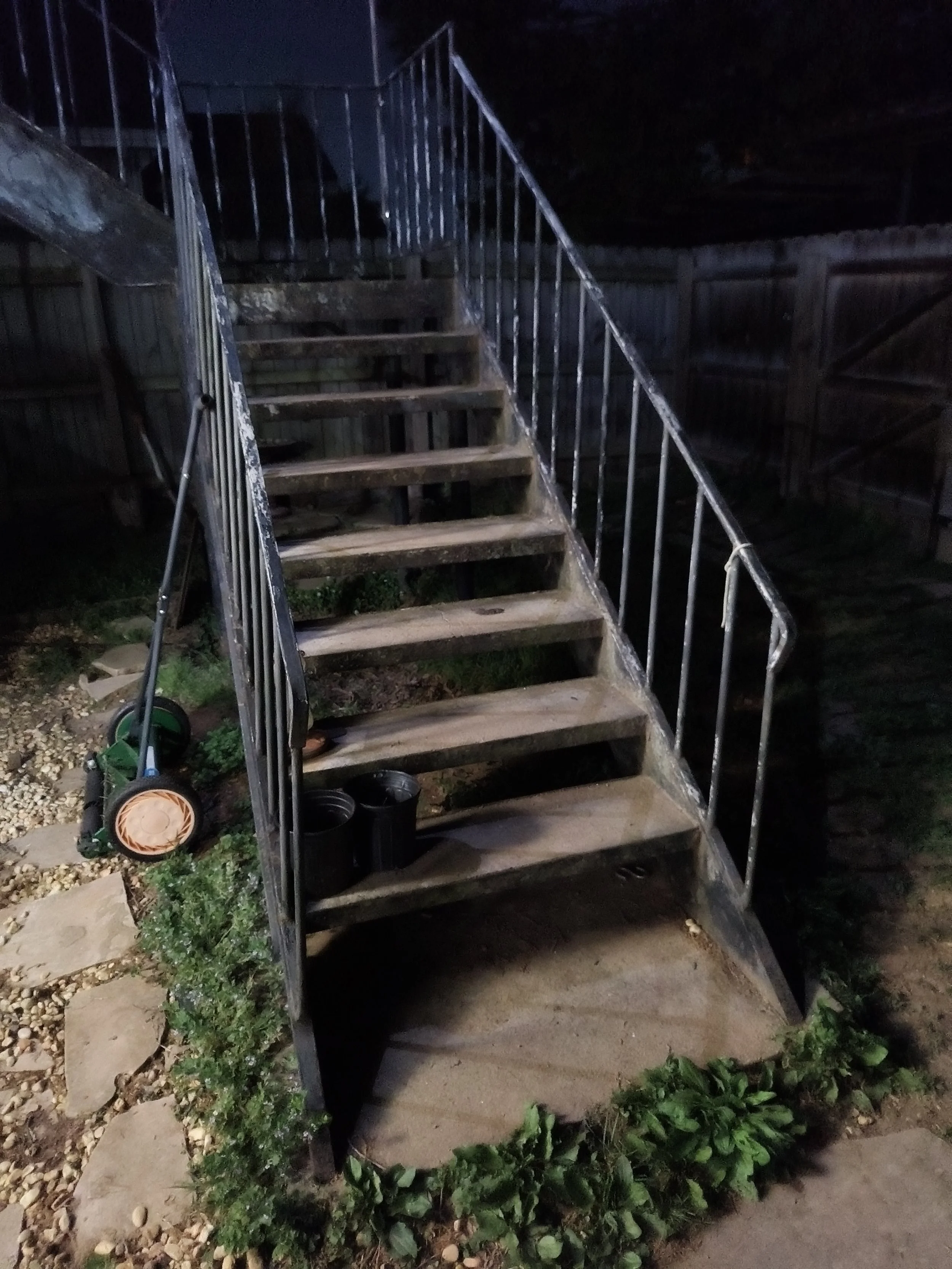
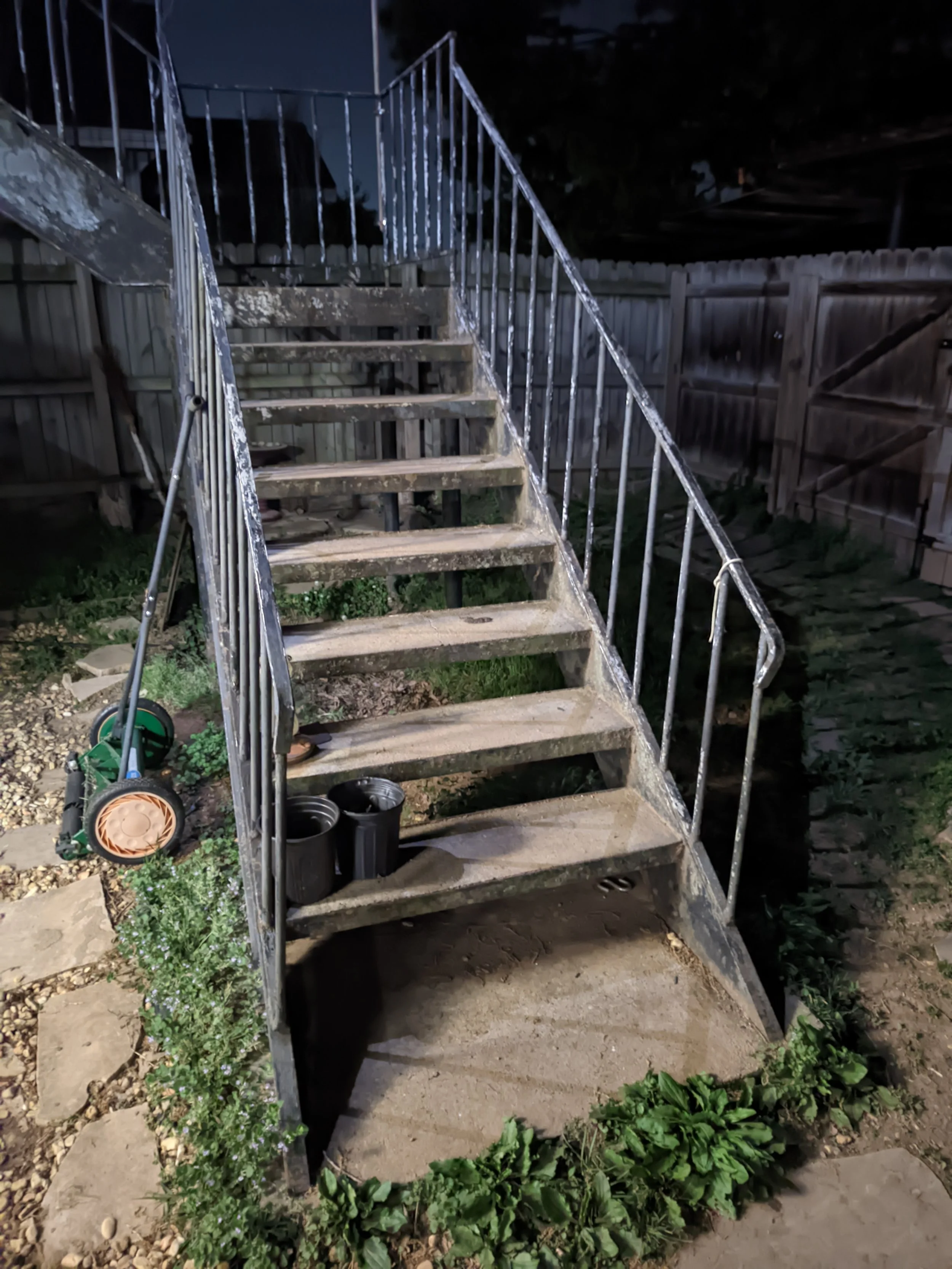


The experience is not exactly seamless, though. The UI is a little bit messed up, largely because the app is struggling with the square aspect ratio of the Titan's screen. For example, you actually need to go into mini mode just to see the settings button at the top of the screen. I also noticed that when you tap to focus, the focus point might not land exactly where you intended.
Despite those quirks, the results are definitely worth the hassle. The exposure is far, far better than what I was getting with the stock app, and the white balance is significantly improved as well. It finally feels like the hardware is being put to good use.
Unfortunately, I have not been able to get the telephoto camera to work with this port just yet. I managed to get the button to appear in the interface, but whenever I tap on it, the app crashes every single time. To make matters worse, I actually end up having to clear the app storage entirely just to get it to function again at all.
Because of that, you may find yourself needing to use both camera apps for the time being. You will want to jump into the GCam port if you want to take a high-quality, well-exposed picture, but you will still need to rely on the stock Unihertz app if you absolutely need to use that telephoto lens.
To keep things as efficient as possible, I have the stock camera app mapped to a double press of the power button, and I have the GCam port mapped to a double press of the programmable function key. This setup makes it pretty easy to jump back and forth depending on what I am trying to shoot. If I need a quick telephoto shot, I hit the power button, but if I want the better processing for a primary sensor photo, I just hit that function key and I am good to go.
The port also adds a dedicated portrait mode to the mix, and I was surprised to find that the cutout for the blur is actually decent. It handles the edges well enough to be usable for most shots. However, not everything is functional, as tapping the modes option that should show additional camera modes crashes the app immediately.
Night sight does kick in nicely in low-light settings and it also makes a notable difference boosting clarity and brightness. Hardly perfect, but once again, much better than the stock app.
I also did some testing with video, which initially looked promising. The stabilization is much better than the stock experience, but unfortunately, there is a strange flashing artifact throughout the footage that makes it unusable for now. It is possible that a different GCam build might handle the video and the modes better, but I will need more time to look into other versions to see if there is a more stable all-around winner.
If you are ready to give this a try, the process is pretty straightforward since it just involves sideloading an APK. Once the download finishes, tapping the APK will trigger your browser to ask for permission to install unknown apps. You might see a warning about the risks of installing apps from outside the Play Store, but these ports are used by tons of people in the community and are safe to use. You just need to grant that permission right there when the prompt pops up, and the installation should wrap up in a few seconds.