XPS Googlebook 13: Premium Hardware Meets an Unfinished OS
If you have been watching my channel for any amount of time, you know that I enjoy being an early adopter. I know that there are going to be bugs, problems, and bumps in the road, but I buy into new tech anyway. I have done it for a long time, and I have done it again here with the Dell XPS Googlebook 13. To put it bluntly, while the hardware on this laptop feels exceptional, the software, Googlebook OS, just is not finished. There are some really good ideas here, but in its current state, it is almost impossible to recommend this device to pretty much anybody.
High-End Hardware and Specs
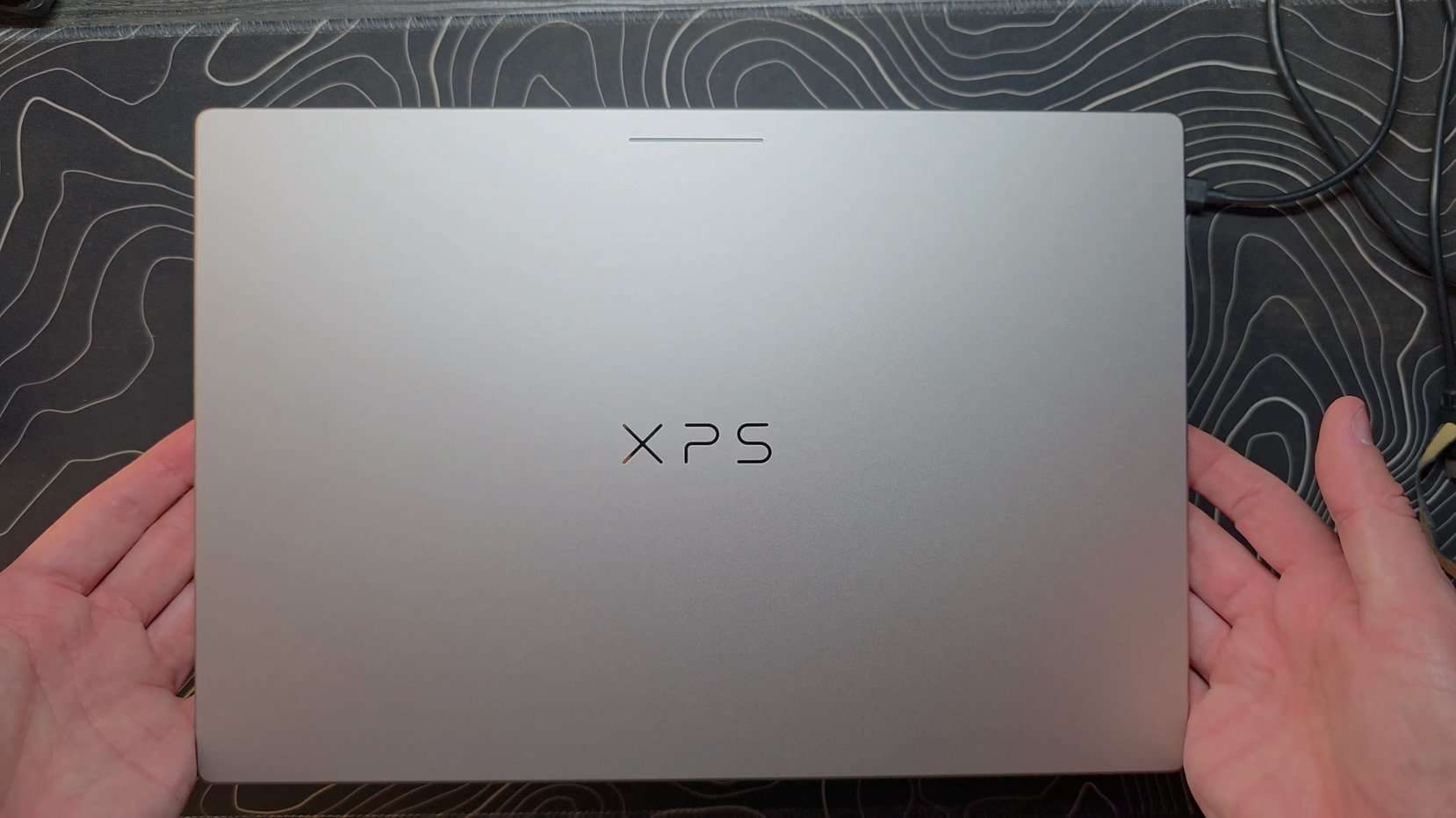
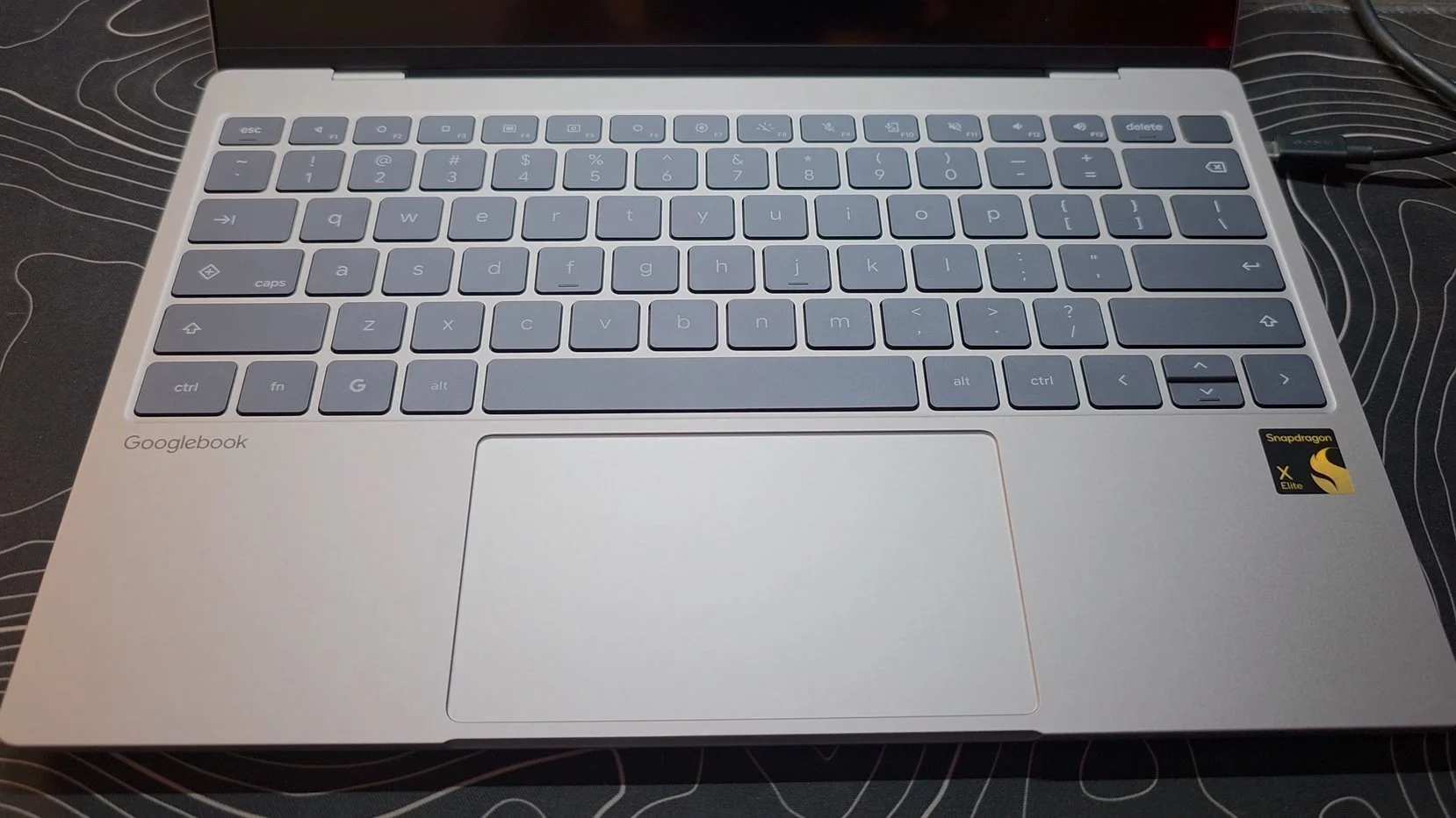
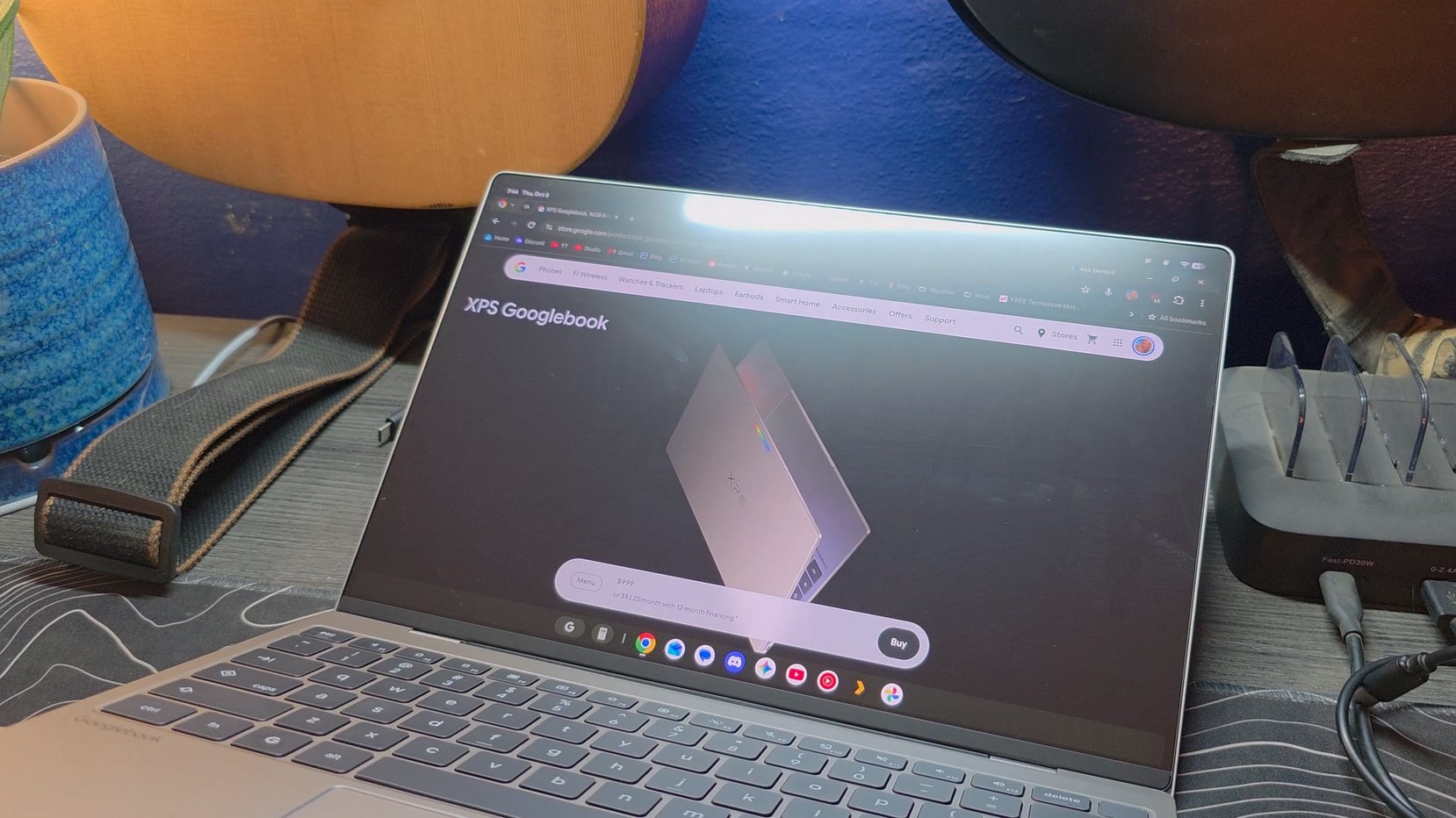
Before diving into the software, credit where credit is due: the build quality here is fantastic. The chassis is CNC-machined aluminum, the device has a great overall weight, and it easily passes the single-finger lid open test. Sitting flat on a desk, the hardware is instantly reminiscent of high-end laptops like the Surface Laptop 7.
Under the hood, you get a Qualcomm Snapdragon X Elite 12-core processor, 16GB of LPDDR5X RAM, and a 512GB PCIe Gen 4 NVMe SSD. The 13.4-inch 120Hz display looks great and features an anti-reflective coating with solid glare and oil resistance. It is not quite S25 Ultra levels of anti-reflection, but it does a fantastic job of cutting down on harsh reflections while maintaining great contrast.
Setup and Thermal Performance
Setting up the Googlebook is streamlined and feels just like setting up an Android phone. You scan a QR code on the screen with your Android device, and it automatically grabs your Wi-Fi credentials and begins pulling down system updates.
Throughout setup and heavy background downloading, the Snapdragon X Elite chip stays remarkably cool. Even while fast-charging and downloading a 1.4GB update, there is no noticeable warmth across the palm rests or the underside of the chassis.
Android 17 Desktop and the "Create a Widget" Reality
Once you get to the desktop, the interface looks like an expanded Pixel experience running on Android 17. You get a clean lock screen, a fast integrated fingerprint scanner, and access to the Google Play Store. Desktop widgets work mostly like you would expect from Android, allowing you to drop standard widgets like Google Photos directly onto your home screen, customize frame shapes, resize them, and keep rotating pictures right on your desktop.
There is also a brand-new feature called "Create a Widget," which is powered by generative AI. It is designed to be somewhat open-ended, allowing you to describe virtually any custom utility, layout, or live content feed you want in plain text, and the system generates that interactive widget on the fly. You can then edit the prompt to refine how it looks, adjust the refresh behavior, or customize what it displays.
For example, I asked it to build a custom Tennessee Titans news widget that would pull in recent headlines while filtering out overly negative stories, complete with a manual refresh button.
This brings us directly into what is going to be a running theme throughout this entire article: almost every time there is a good idea or a feature I genuinely like on this laptop, there is almost always something negative holding it back, something that just feels unfinished. With the "Create a Widget" tool, it is actually pretty cool to see generative AI build something tailored to what you want on your home screen. But the execution immediately stumbles. Whenever you click on a news link inside that created widget, it opens up your browser, but it opens that exact web page twice every single time.
Play Store Incompatibilities and Web App Reliance
While you have access to the Play Store, app availability is surprisingly spotty. Essential utilities like Google Authenticator and TP-Link Tapo show up as completely unsupported in the Play Store. Fortunately, you can manually sideload APKs from sources like APKMirror, and apps like Tapo run perfectly fine once installed.
The bigger issue is that Google defaults major apps like YouTube, YouTube Music, Google Drive, and Gmail to web shortcuts running inside Chrome rather than native Android apps.
Because YouTube defaults to a web app, managing multiple accounts becomes a huge headache. Like many creators, I have a dedicated YouTube account for managing my channel and a separate account for my personal viewing. On a desktop, it would be ideal to keep your web browser logged into your channel account so you can manage YouTube Studio, while keeping the standalone YouTube app logged into your viewing account. But because YouTube on Googlebook OS is just a web app, it is tied directly to whatever browser is set as your default. Whenever you sign into your channel account in the browser, the YouTube app automatically switches to that same account as well. You cannot separate them. The current workaround is running a completely separate browser, like Vivaldi, just to handle separate web app logins. Additionally, using the web version of YouTube means you lose easy access to floating Picture-in-Picture video playback when navigating around the OS.
Gmail running as a web app creates similar headaches. Web apps like Google Messages and Gmail are supposed to deliver background notifications on a system like this. With Google Messages, it works well enough, but with the Gmail web app, notifications have not worked at all for me. I have literally not gotten a single notification from Gmail. Beyond that, running as a web app means no desktop widgets. Sideloading the native Gmail APK works initially, but attempting to drop a widget crashes the system and force-reverts the installation back to the web wrapper. To get reliable email notifications, installing Microsoft Outlook was the only dependable option.
This just does not actually work.
Software Quirks, Audio Wandering, and Navigation Bugs
Daily use uncovers a series of software bugs and interaction inconsistencies across Googlebook OS. While the speakers deliver a surprisingly full, punchy sound, listening to audio or watching videos reveals an odd bug where the volume level wanders unpredictably, getting quieter and louder on its own.
Trackpad navigation also has some strange logic errors. Swiping down with three fingers on the trackpad cleanly brings down the notification shade. However, swiping up with three fingers does not dismiss it, instead taking you into the multitasking desktop view. Dismissing the shade requires doing a second three-finger swipe down or clicking away.
Furthermore, the built-in System Tips tutorial explicitly instructs users to swipe up with three fingers to view recent tasks and swipe up a second time to go home. In practice, that second swipe up does absolutely nothing. Upon initial setup, newly installed apps also automatically added shortcuts to the desktop even though the setting was toggled off, requiring a toggle cycle to fix.
Phone Integration and Continuity Constraints
The OS includes a dedicated phone button in the taskbar meant to stream phone apps and sync notifications, but phone continuity currently feels incomplete. Cross-device features are quite literally restricted to four phones: just the most recent Pixel 11 lineup.
It is wild that you can buy an $1,800 or $1,900 flagship device like the Samsung Galaxy Z Fold 8 and this feature simply is not supported out of the box. One could argue that this is not entirely Google's fault because Samsung needs to push out a software update on their end to enable compatibility. But given that this is a flagship launch feature for Googlebook OS, you would think that impressing upon Samsung how critical this compatibility is would have been a top priority before putting these laptops on shelves.
Even on supported Pixel hardware, initial pairing can be finicky, requiring devices to be removed and re-added to the Google account group to establish a stable link. When successfully linked, a small "Continue On" chip appears on the desktop whenever you are browsing a webpage on your phone, allowing you to instantly jump back into the same link on the laptop.
The Highlights: Rambler, Speed, and OS Navigation
Despite the software issues, there are legitimate highlights. The keyboard includes a dedicated key that instantly triggers Rambler. Spoken dictation is fast and accurate, placing punctuation correctly and converting natural speech into clean text. Accepting terms during initial setup did cause a full system crash, but the reboot sequence took less than 30 seconds.
Built-in tools like Circle to Search (triggered via G + A) and Magic Cursor work cleanly for grabbing text or images directly off the screen for Gemini prompts.
The system menus are also refreshingly clean compared to Windows 11. Instead of dealing with legacy Control Panel layers, right-clicking an app icon lets you uninstall it directly without digging through endless settings pages.
Final Verdict
Googlebook OS has a solid foundation, fast performance, and exceptional hardware, but the sheer volume of software bugs, missing native apps, and unpolished features makes it hard to recommend right now.
If Google continues backing the platform with meaningful software updates over the next year, this has the potential to become something great. For now, the best move is to hold off and wait for the software to catch up to the hardware.