17 Pixel 11 Pro Fold Tips & Tricks to Master Your Foldable
More people are making the jump to Pixel devices recently, and if this is your first Android phone or your first foldable in a while, it is easy to feel a little overwhelmed. While Google’s take on software is not quite the wild sandbox of settings you might find on a Samsung device, there is a surprising amount of customization, power-user multitasking and clever AI baked right into the new Pixel 11 Pro Fold.
Here is everything you need to know to get the most out of your new foldable.
Customizing Your Quick Settings and Lock Screen
Starting with the notification shade, you can customize your quick settings tiles by tapping the pencil icon on the left. This allows you to rearrange tiles, add or remove shortcuts, and even adjust the tile sizes to match how you use your phone.
Diving into your lock screen settings by long pressing an empty space on the home screen and opening Wallpaper & Style, you have plenty of clock faces and the ability to add glanceable lock screen widgets. You can also customize the two bottom corner shortcuts for quick access to your most-used tools.
Theming, AI Icons and Dynamic Wallpapers
Under the home screen section of Wallpaper & Style, the Material You theming engine will automatically pull accent colors from your wallpaper, though you can manually select alternate palette presets.
In the Icons menu, you can toggle minimal themed icons, change the app icon shape, hide app labels for a cleaner look and adjust home screen grid density. There is also a Create option powered by generative AI that creates stylized icon packs, like the Stardust theme, across your entire app library.
For wallpapers, the options go way beyond standard photos:
- Wallpaper Studio: Scans your photos to create a 3D-style dynamic cutout that zooms in smoothly when you unlock your device.
- AI Wallpapers: Select prompt presets and swap out descriptive keywords to generate unique high-resolution backgrounds.
- Emoji Workshop: Lets you build quirky, customized pattern wallpapers using your favorite emojis.
Mastering Multitasking: Split Screen, 90/10 and the Bubble Bar
Multitasking is where the Pixel 11 Pro Fold really shines. A short swipe up from the bottom edge pulls up your taskbar. Grouping your dock into folders is a great productivity trick here, letting you launch into a ton of apps instantly without opening the full app drawer.
Dragging an app from the taskbar to the left or right launches traditional split screen. You can drag the middle divider to resize the windows, or push it all the way to the far edge to trigger a 90/10 split. This keeps your secondary app running in a slim side rail while giving your primary app 90% of the display.
If you want a third app running, drag it from your taskbar directly down toward a bottom corner. This opens the app in a floating pop-up. Tapping elsewhere minimizes it into the Bubble Bar at the bottom of the screen, where you can dock multiple minimized apps and pull them back up whenever you need them.
Other helpful multitasking shortcuts:
- Double-tap the center divider in split screen to instantly swap the positions of the two apps.
- Swipe up and hold to open Recent Apps, tap the app header and choose Save App Pair to create a dedicated home screen shortcut that launches both apps together.
- Long press any incoming heads-up notification and drag it to either side of the screen to open it directly into split screen.
- Long press the center dividing line to pin the taskbar permanently on screen while inside applications.
Desktop Mode on External Displays
Plugging the Pixel 11 Pro Fold into an external monitor or lapdock opens up Google’s desktop mode. While not quite as feature-packed as Samsung DeX, it gives you a floating window interface where you can resize apps, arrange multiple windows and share your taskbar setup. Cursor tracking moves smoothly across your phone display and the connected monitor, making it a capable portable workstation in a pinch.
Fixing Broken Aspect Ratios
Because the inner display is largely square, certain third-party apps might stretch awkwardly across the screen instead of adapting to a tablet layout. If an app looks broken, open Recent Apps, tap the app icon at the top, select App Info, head into Advanced and tap Aspect Ratio. Switching from Full Screen to 3:2 or Half Screen forces the app into a pillarboxed phone format that keeps everything scaled properly.
Display and Fold Settings You Should Tweak Immediately
A few key display toggles will dramatically improve your day-to-day experience:
- Turn Off Enhanced HDR Brightness: Prevents ultra-bright HDR photos in social media feeds from blinding you while scrolling in low light.
- Customize Navigation Mode: If you prefer traditional navigation buttons over gestures, switch to 3-button navigation, where you can also reverse the back and recent app buttons if you prefer the classic Samsung layout.
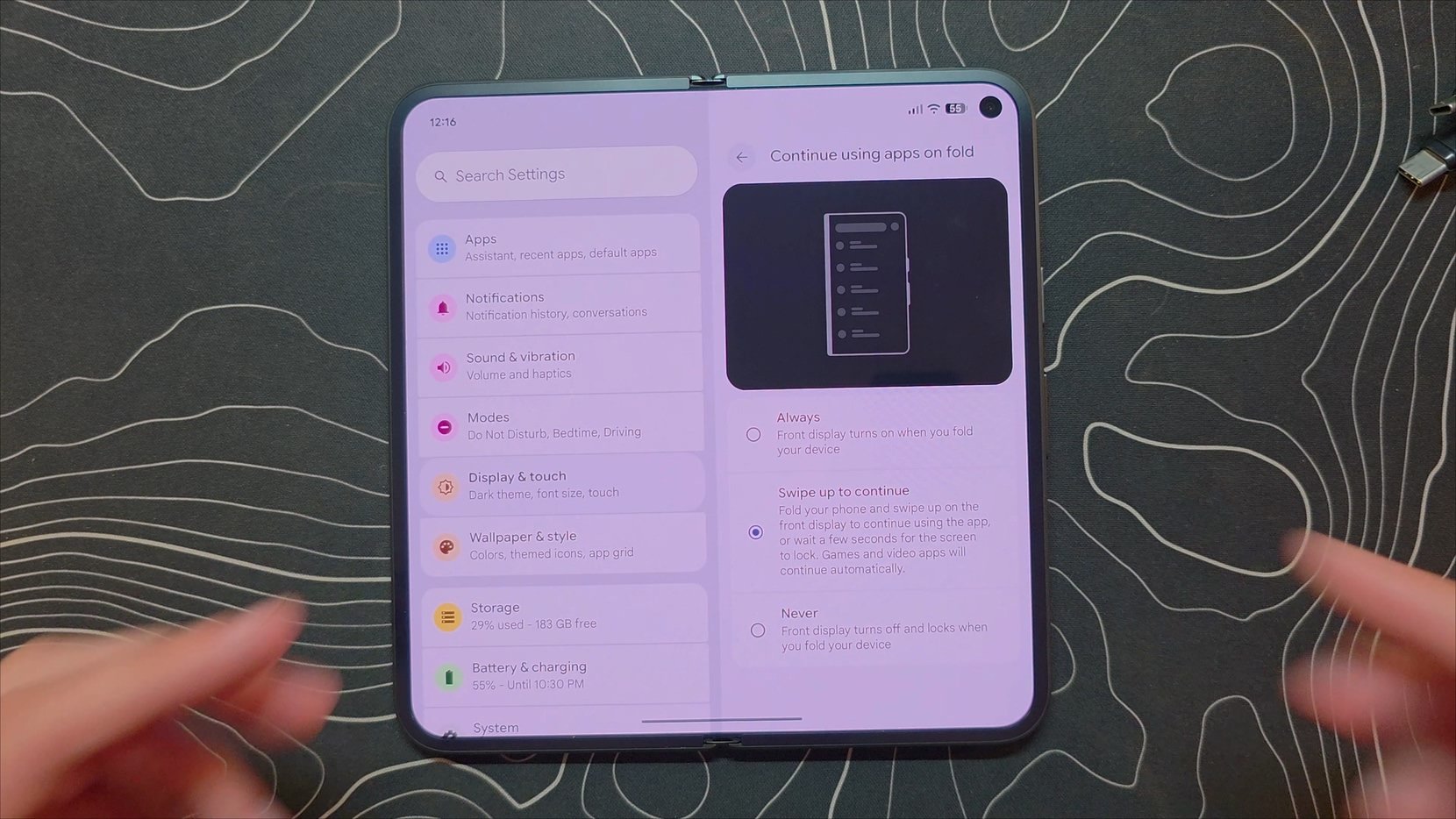
- Continue Using Apps on Fold: Set this to "Swipe up to continue." When you fold the phone closed, instead of the cover display immediately turning on or locking completely, you get a brief prompt allowing you to swipe up to seamlessly pick up where you left off.
- Split Auto-Rotate Settings: You can independently enable auto-rotation for the unfolded inner display while keeping it locked to portrait on the cover screen.
- Always-On Display Wallpaper: Toggle "Show lock screen on wallpaper" under Display settings to keep a soft, dim blur of your wallpaper active on the ambient display.
Digital Wellbeing: App Timers and Pause Point
Under Digital Wellbeing, you can set hard app limits that gray out distracting apps once your daily timer runs out. There is also Pause Point, which adds an intentional interstitial prompt when you open an addictive app, giving you a brief moment of reflection before you start mindlessly scrolling.
Biometrics: Class 3 Face Unlock and Instant Fingerprint
Both the inner and outer cameras support Class 3 biometric face unlock, meaning you can authenticate banking apps and password managers securely with your face. For the best experience, enable "Require attention" so your eyes must be open to unlock, and disable "Skip lock screen" if you want a chance to look at your notifications before entering your device.
Under Fingerprint settings, make sure to enable "Touch to unlock anytime." This keeps the side-mounted capacitive scanner active at all times, letting you unlock your phone instantly with a touch without needing to physically press down on the power button first.
Smarter Phone Calls and Safety Tools
The Google Phone app includes some of the best call-management features on any smartphone:
- Call Screening: Set this to maximum protection to have Google Assistant automatically answer, screen and transcribe suspected spam callers.
- Scam Detection: Analyzes conversations locally on-device in real time to alert you if the caller starts using language typical of social engineering scams.
- Call Notes: Tapping this during an appointment or important call records the conversation, notifies the caller and automatically generates an accurate transcript with a bulleted summary.
Everyday Convenience: Circle to Search, Now Playing and Rambler
A few system-wide tools make daily navigation effortless:
- Circle to Search: Long press the bottom navigation handle and circle anything on screen to look it up or quickly highlight and copy text straight out of uncopyable images.
- Now Playing: Passively identifies songs playing around you in the background and logs them into a searchable history list linked to your music streaming apps.
- Battery Percentage: Head into Battery and Charging settings to show your exact numerical percentage next to the battery icon in the status bar.
- Notification Summaries: Groups long strings of rapid-fire group chat messages and presents a concise summary so you can get the gist without reading walls of text.
- Rambler Voice Typing: Located on your Gboard microphone, Rambler lets you talk naturally, use conversational filler words, pause and even self-correct mid-sentence without worrying about formatting or punctuation. It automatically cleans up and transcribes your speech into clean text.
Messaging Tricks: Custom Themes and AI Image Remixing
Inside Google Messages, tapping the three-dot menu allows you to set custom background chat themes for individual contacts. You can also long press any sent or received photo and tap Remix to use generative AI tools to alter backgrounds, zoom in on subjects or generate creative artistic edits directly inside your conversation.
Camera Features and Foldable-Specific Modes
The camera software packs several unique tools tailored to the foldable hardware:
- Quick Access Controls: Tapping the center of the camera viewfinder brings up fast-access adjustments, including custom color and tonal Looks.
- Magic Capture: Records continuous video while simultaneously snapping full-resolution still photos in the background so you never miss a moment.
- Rear Camera Selfies: Flips the viewfinder to the cover display, letting you use the high-quality main sensor to frame sharp selfies.
- Dual Screen Preview: Shows the outer display preview to your subject while you frame the shot on the inner display.
- Made You Look: Plays fun animations and sounds on the cover screen to grab the attention of young kids or pets while you take their picture.
Google Photos: Magic Editor, AI Framing and Ask Photos
Inside Google Photos, tap Edit and head into Actions to find the full suite of AI editing tools. Magic Eraser lets you circle and remove unwanted background objects, while Move allows you to reposition and scale subjects across the frame.
You can also use the Ask tool to type natural language editing requests like "remove the background" or "brighten the subject." For quick composition tweaks, AI Enhance and Autoframe analyze your shot to straighten horizons, fix crops and even generate expanded AI borders around the frame to zoom out your photos without losing detail.