Finding Balance | Unihertz Titan 2 Review
The announcement of the Clicks Communicator recently reignited a massive amount of interest in physical keyboard devices. While many are waiting for that hardware to ship, I found myself asking a very practical question. Why wait for the Communicator when the Unihertz Titan 2 is available right now? This curiosity led me to put my own money down to see if this device could fulfill a very specific role in my life as a content creator.
Working from home presents a unique challenge because I lack a traditional divide between my professional and personal time. If my phone is in my hand, I am effectively at work. My job requires me to constantly monitor social media feeds, respond to YouTube comments and stay engaged with my audience. It is an "always on" lifestyle that can quickly lead to burnout. I realized that a phone that is intentionally bad at doom scrolling might actually be a benefit to me. The square screen of the Titan 2 creates the perfect amount of friction. In theory, it would allow me to get work done, but not fall into the sinkhole that larger screens provide. Get in, respond to some comments and get out.
Beyond the mental health benefits, this phone is my attempt at creating a "SIM Swapper's Home Base." I switch between different folding phones constantly. Moving my SIM card back and forth is a persistent annoyance that I am ready to leave behind. My plan for this review was to use the Titan 2 as a permanent anchor for my primary SIM to handle all calls and texts. When I want to use a foldable for media or more intensive tasks, I can simply tether it to the Titan. By utilizing Messages for Web, I can keep my communications synced across devices without ever having to reach for a SIM tool. This setup aims to provide a focused communication experience that finally separates my "work" phone from my "play" device.
Unique, but Familiar Hardware
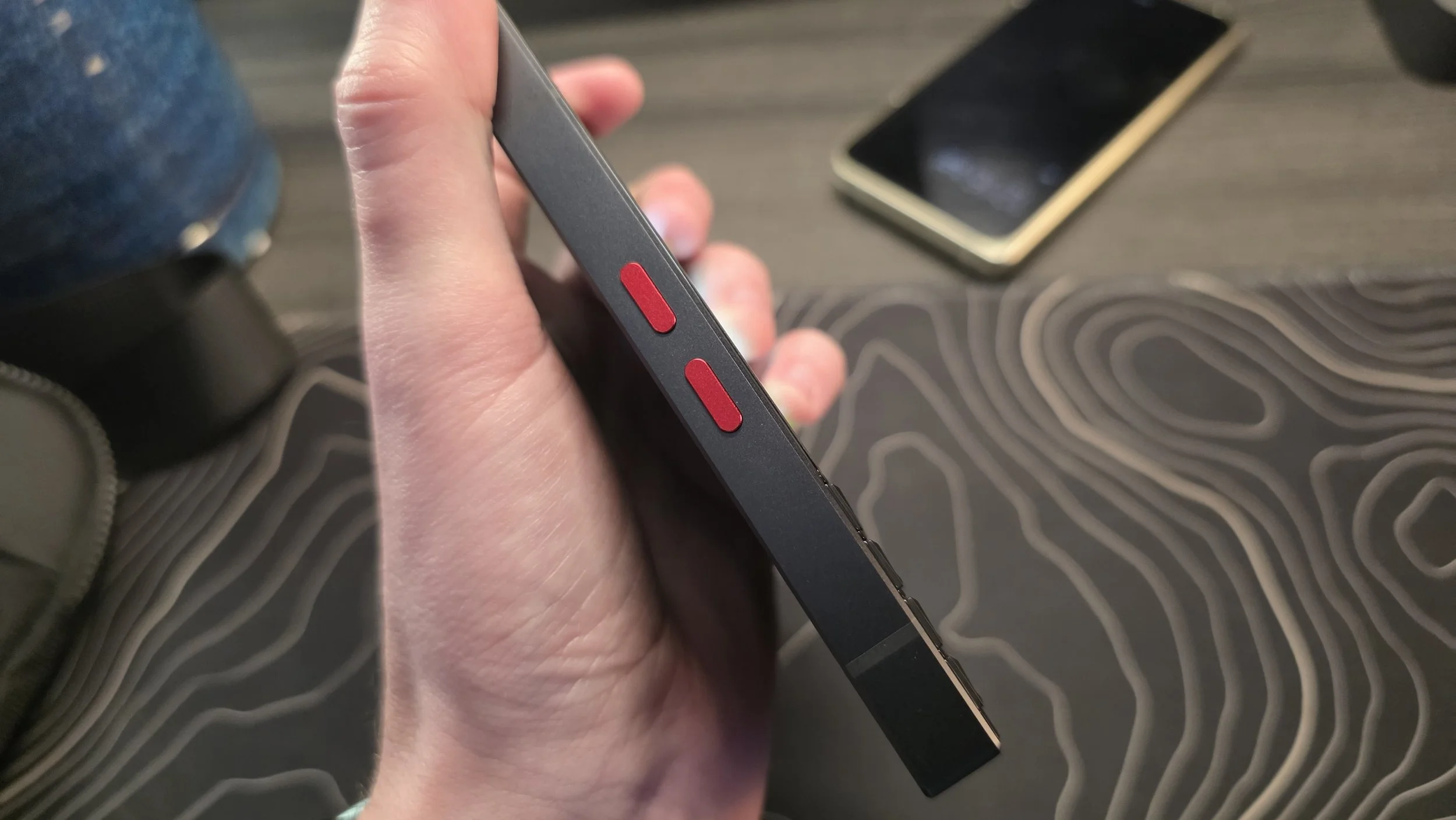
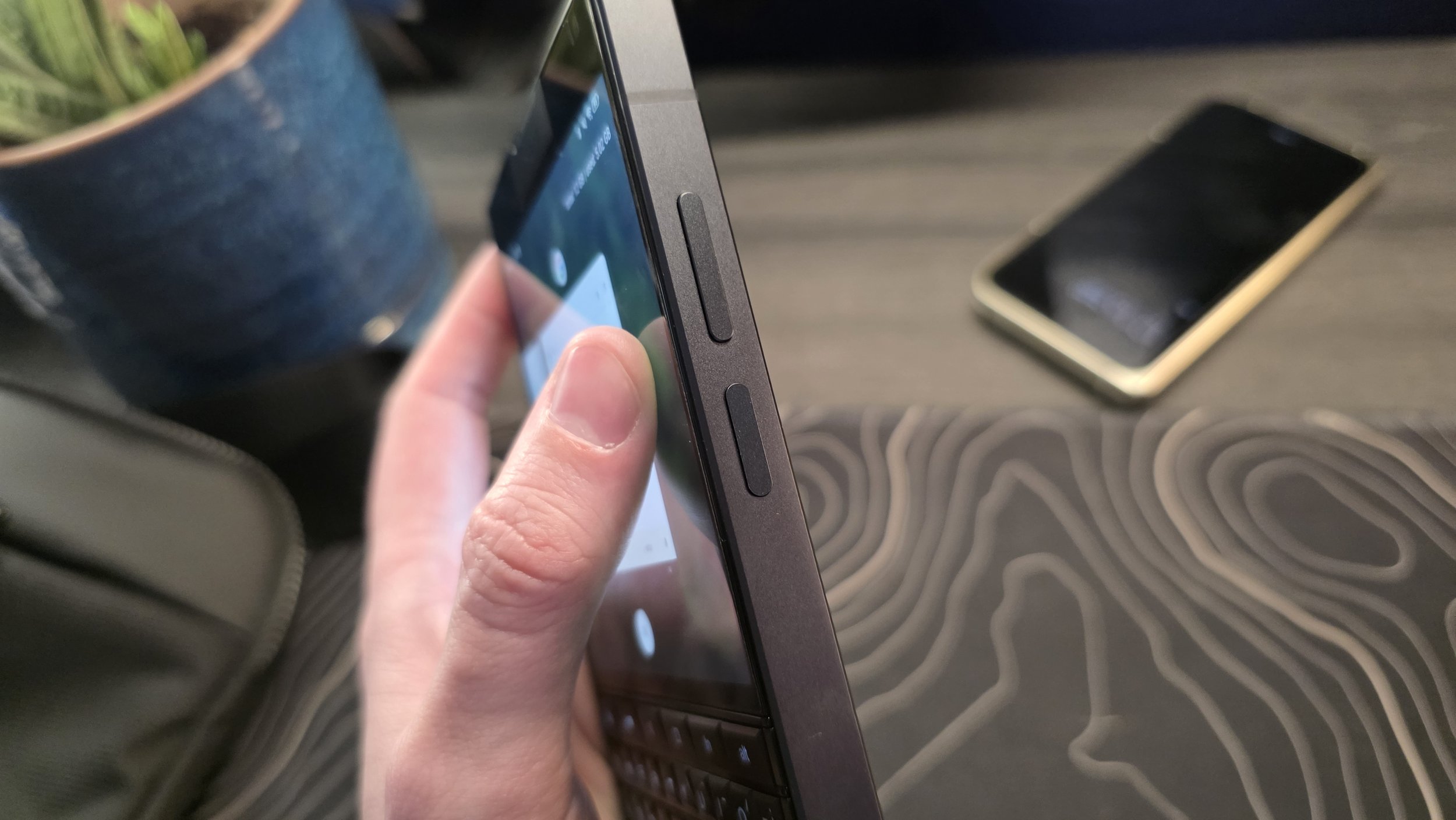
The Unihertz Titan 2 is a massive departure from the slim smartphones we see every day. It features a rugged, flat-edge design that feels incredibly solid. The device measures 137.8 by 88.7 millimeters and is nearly 11 millimeters thick. At 235 grams, it has a weight that reinforces its "Titan" branding. For reference, the Clicks Communicator measures approximately 130.5mm x 78.6mm x 12mm with a 170g weight. Make no mistake, there is no one-handed typing on this device. You are fully committed to old-school two-handed input.
Speaking of typing, the star of the show is the physical QWERTY keyboard. These keys are backlit, tactile and very satisfying to click. The keyboard also functions as a capacitive touch surface. This allows you to swipe across the keys to scroll. Despite this not feeling great, I do find myself scrolling on the keyboard fairly often, mostly just because it’s easier to reach than the screen. Bonus points for keeping the screen clean too. You can even assign long-press and short-press shortcuts to every single letter key on the board which can fling you into an app from your homescreen.
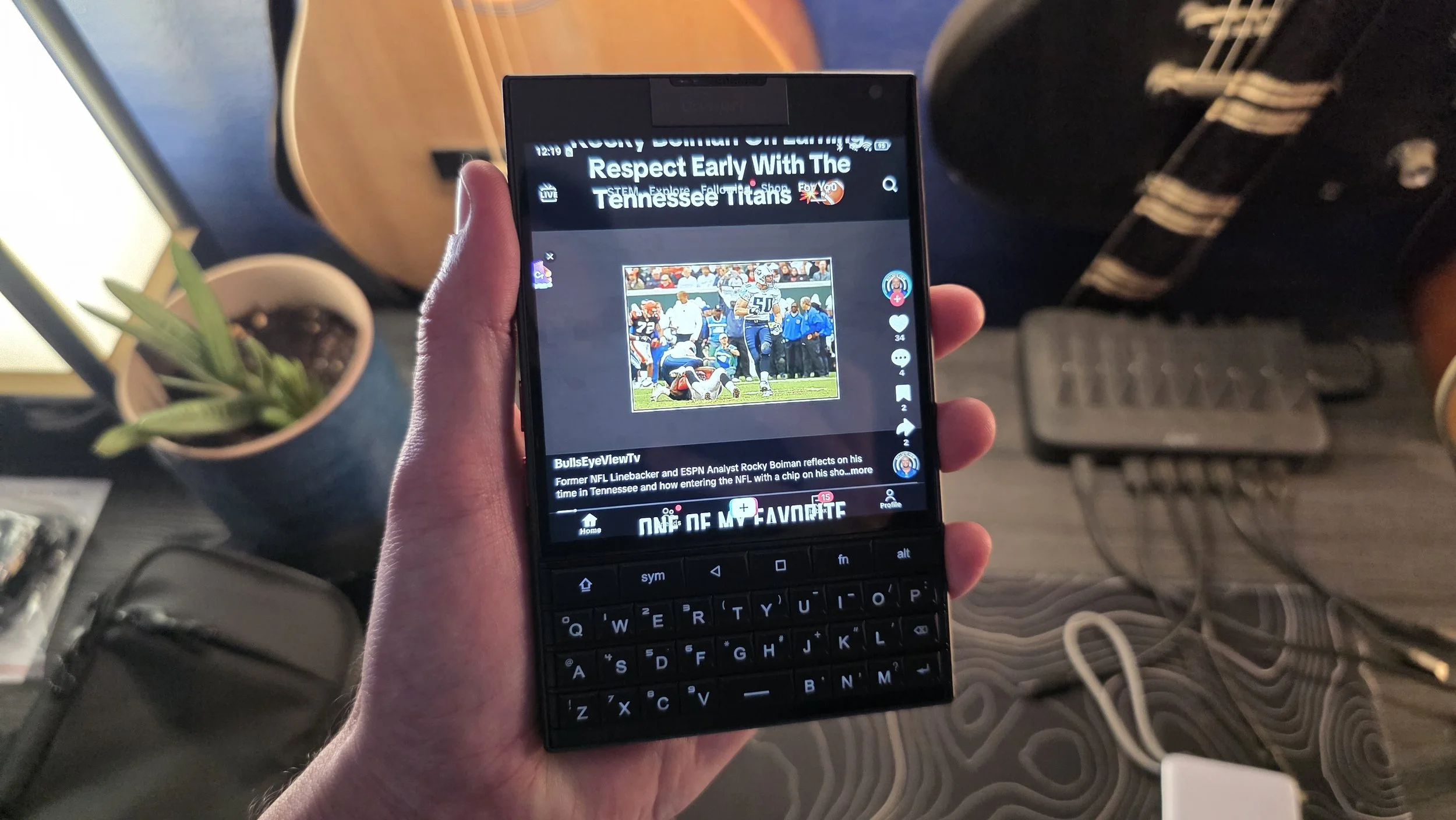
The primary display is a 4.5-inch square LCD with a resolution of 1440 by 1440 and a 60Hz refresh rate. Due to this square aspect ratio, lots of apps just are not fun to use. My home camera app Wyze is usable, but scrolling through the timeline of each camera is literally impossible. You need to go to the main Events screen to do something like this. Apps like TikTok or Instagram display content often clipped at the top and bottom. Perhaps this is a good thing?
To alleviate this, there is a quick toggle that adds pillar boxing to make apps usable. Sadly, this is a system wide toggle and not something implemented per app, which would be far more useful.
Of course, this does nothing to aid people who intend to use this device for working on documents or spreadsheets. This screen is simply too small for something like that to be enjoyable.
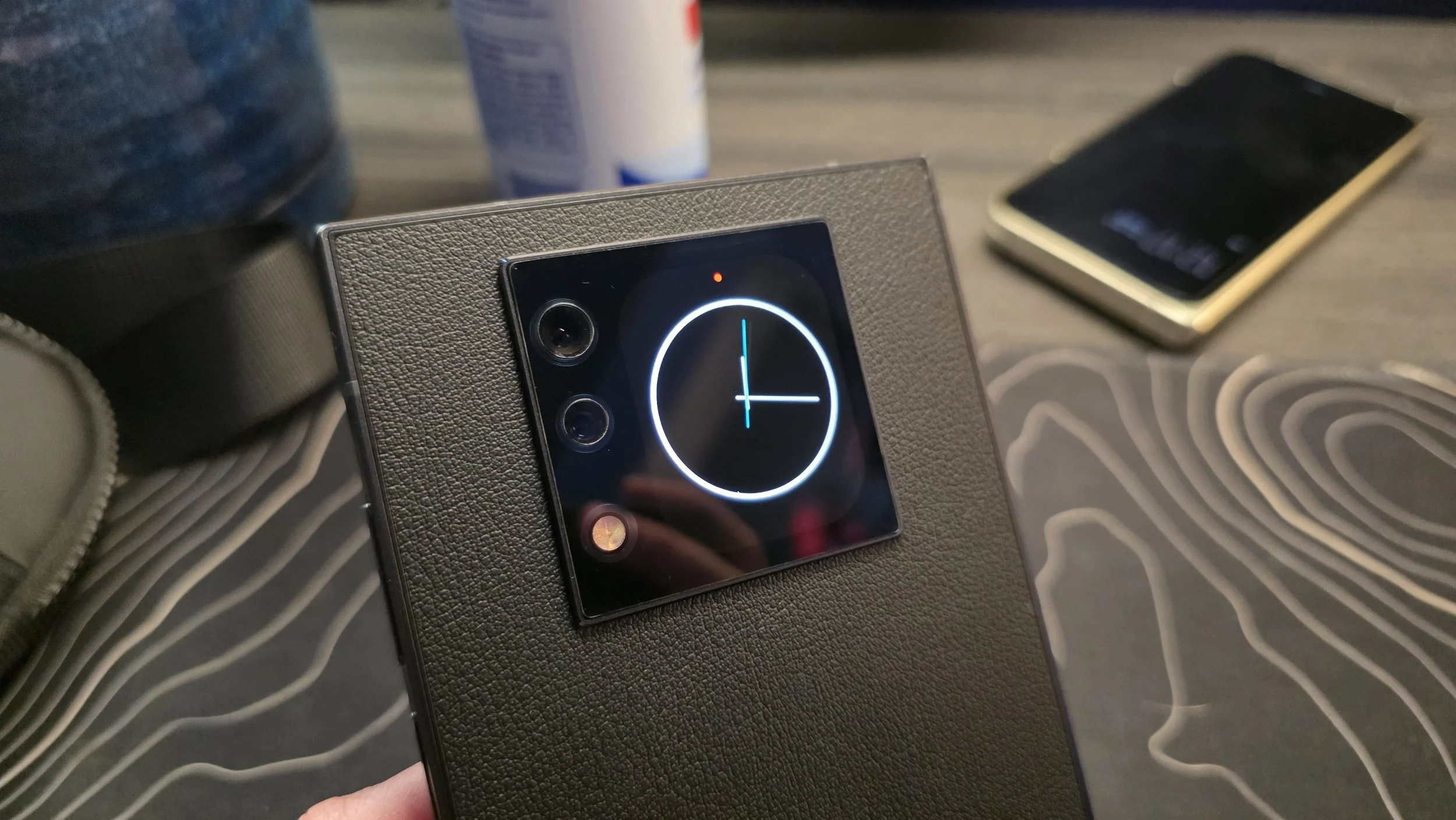
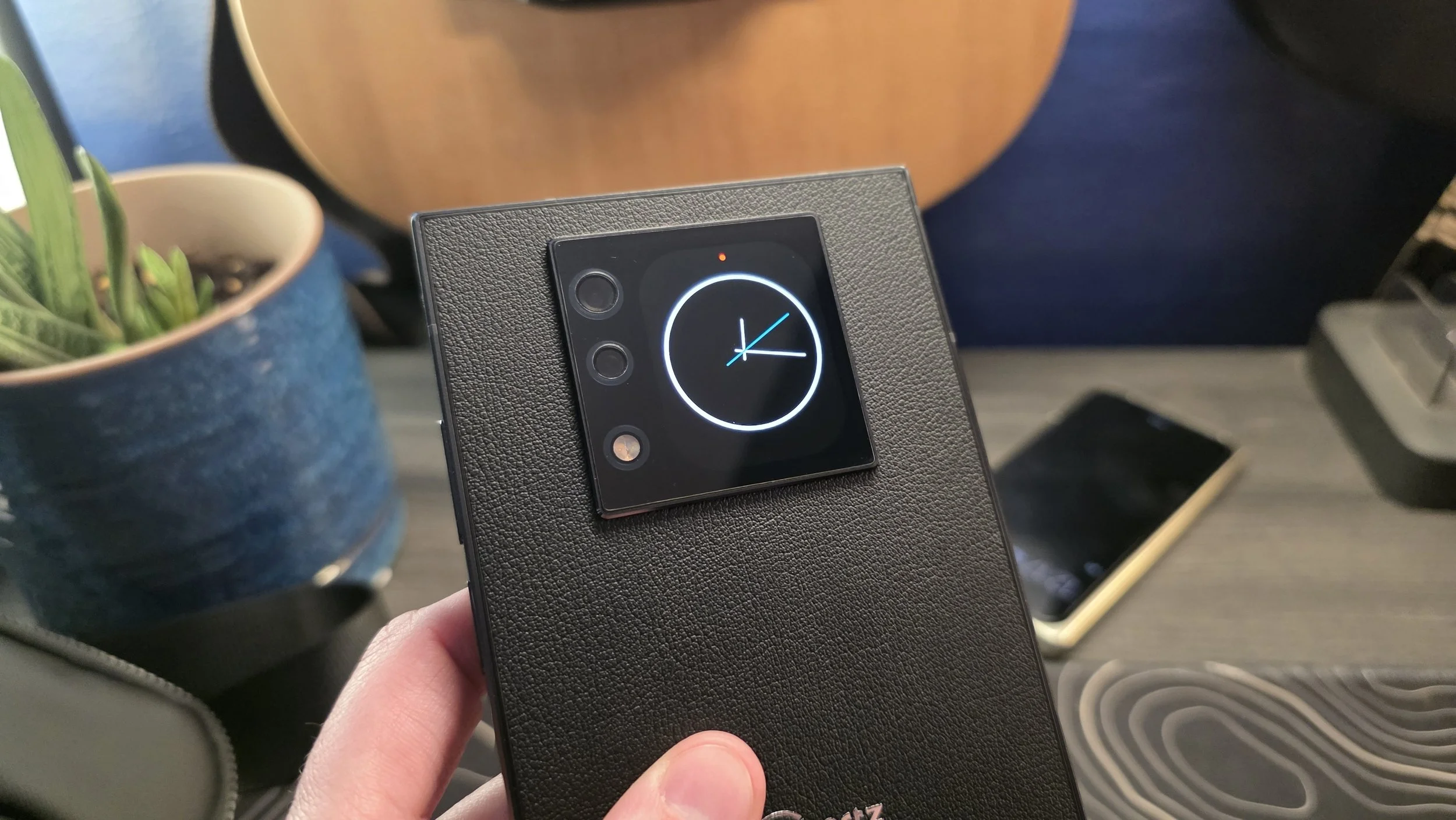
Flipping the phone over reveals a unique 2-inch sub-screen. This rear display shows your notifications, clock, music controls and even a camera viewfinder for taking high-quality selfies with the main lens. I have found this screen to be quite literally useless. I’m sure some will enjoy glancing at their notifications or taking selfies, but not I.
The single down-firing speaker is fine. Not particularly loud, but better than expected. I will say that on one phone call, it was very quiet on speaker phone though.
The power button’s in-built fingerprint scanner is fast and responsive enough. No real issues there.
Internally, the Titan 2 is powered by the MediaTek Dimensity 7300 processor. This 4-nanometer chip is paired with 12GB of LPDDR5 RAM and 512GB of UFS 3.1 storage. Performance is.. decent. There are certainly some hitches and stutters here and there, but it broadly performs fine. Combined with the lower refresh rate, the device does feel admittedly dated when in use.
The 5050mAh battery provides excellent endurance and supports 33W fast wired charging. The Titan 2 has had no trouble making it through the day for me. Granted, I’m not hammering out 6 hours of use per day with it. I have a hard time imagining normal use killing the phone before you can get to a charger. Connectivity is modern with support for 5G, Wi-Fi 6, Bluetooth 5.4 and NFC. It also retains enthusiast features like the infrared blaster, FM radio and the classic red programmable side buttons.
This is a big phone. If this is your only phone, the bulk likely isn’t much of an obstacle beyond being a bit snug in a normal pocket, but if you’re doing what I’m attempting and trying to use it in conjunction with a second phone.. You might end up doing what I did and buying a sling to drop one of your devices into. It’s fair to point out this wasn’t marketed as a companion device like the phone from Clicks me running out of pocket space has more to do with me trying to use this thing in a way it wasn’t really intended to.
An AFterthough of a Camera System


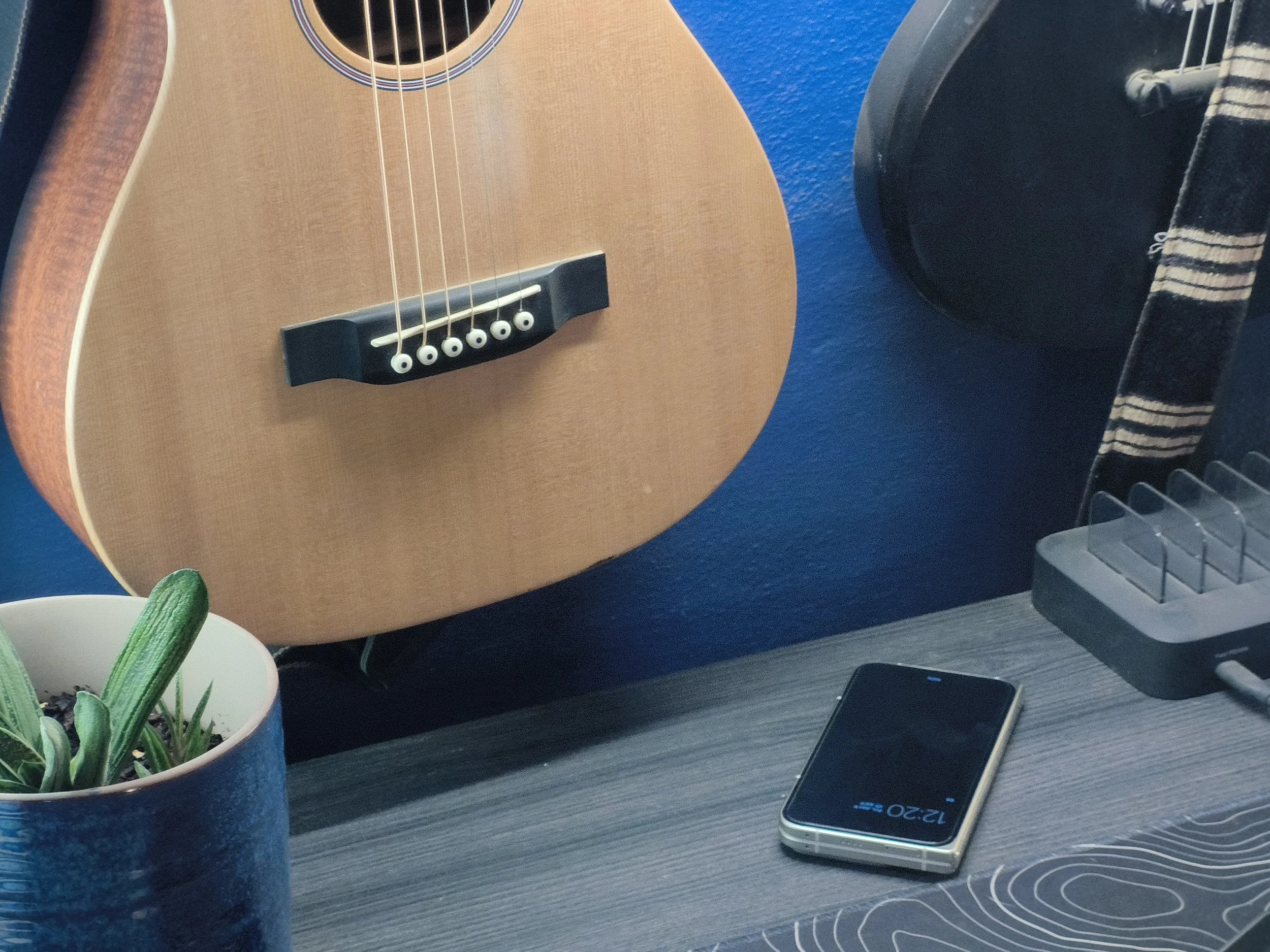
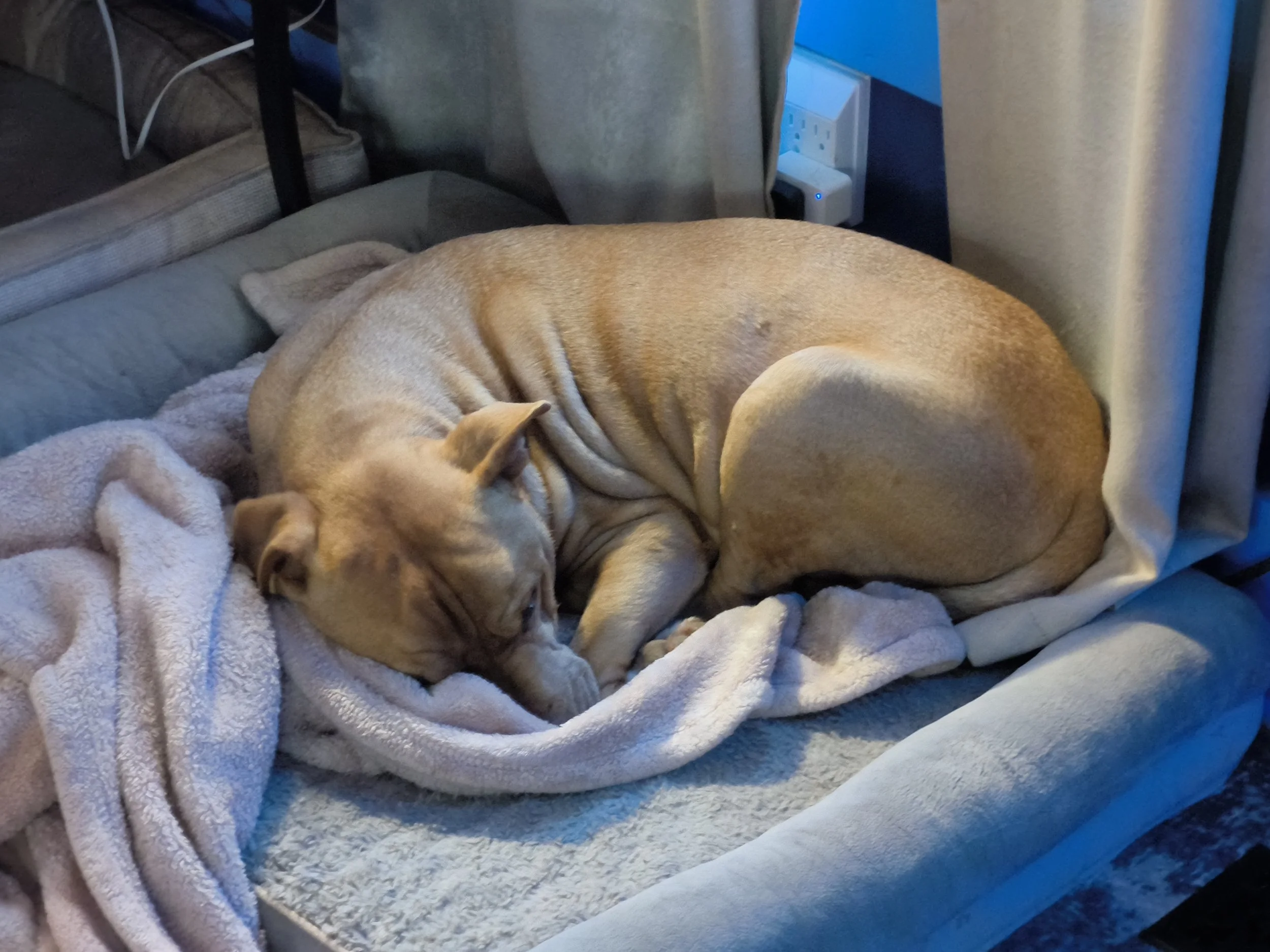


The camera system on the Titan 2 consists of a 50MP main sensor, an 8MP telephoto lens and a 32MP front-facing camera. While the hardware specs look decent on paper, the actual performance tells a different story. The main sensor seems capable of capturing okay detail, but the software processing really lets it down. Photos often come out looking desaturated and lacking the punch you would expect from a modern sensor. I also noticed frequent issues with motion blur even in relatively stable conditions. It feels like the sensor itself is fine, but the software simply doesn't know how to handle the data it is receiving.
The 8MP telephoto camera is unfortunately the weakest link in the setup. It is 3.4x optical zoom, but the results are consistently poor. Every shot I took with it was grainy and lacked sharpness. The detail is so low that it is hard to justify using the zoom lens at all. If you need to get closer to a subject, you are almost always better off cropping into a photo from the main sensor instead of switching to the dedicated telephoto.
For selfies, the 32MP front camera is serviceable but has a tendency to overexpose. This leads to highlights being blown out, especially if you have a bright light source or a window behind you. On a positive note, you can use the secondary screen on the back as a viewfinder to take selfies with the 50MP main lens. This is a much better way to capture high-quality self-portraits because the main sensor is significantly better than the one on the front.
Using the Keyboard
The physical keyboard is easily the most important part of the Titan 2 experience, but it is also where the software begins to show some cracks. Unihertz uses a built-in software suite called Kika Keyboard to manage the input, and to put it bluntly, it is bad.
During my testing, I encountered frequent issues where the "auto-correction" would turn perfectly normal sentences into total nonsense or invent words that don't exist in the English language. Typing “yeah,” would be converted into all caps for some reason. In my notes for this review there is a line that reads “Performance istuttery at timess (WTF)” because that’s what Kika thought was best. It will occasionally insert extra letters or entire words into random places while I am typing. Instead of helping me type faster, the software often feels like it is working against me.
The good news is that you can replace the stock software with something like Gboard or SwiftKey. Either of these options will do a much better job of correcting errors and they seem to totally fix most of the weirdness I experienced. However, there is a trade-off. Switching away from Kika renders the SYM key on the physical keyboard essentially useless.
On the stock Kika setup, that key opens a symbols menu. Since Kika is unusable for me, I have used the Unihertz shortcut settings to map the physical SYM key to act as a home button instead. If you use Gboard, you can still access symbols by pressing Shift + Alt + S on the physical board. When it comes to SwiftKey, I am honestly not sure how to quickly pull up that same symbol menu. That has been a bit of a hurdle in my testing, and perhaps one of you reading this knows the solution and can let me know in the comments.
Once all that is out of the way, typing is quite nice. I have always found that typing on a physical keyboard enables me to type more accurately, but not faster. I feel like that remains true here as well and I think that there is utility in that. If you have fewer, or even no errors to correct, you might end up being done faster vs swiping around on glass and having to go back and correct multiple errors. That’s how it works for me, anyways.
One major monkey-wrench in this is how much better voice typing has gotten. Especially on a Pixel device, this input method has become far and away the fastest and most accurate way for me to type. Throw in the Proofread option in Gboard which will fix my errors in just a couple seconds and you’re left with far less justification for using a physical keyboard.
The Software Experience
The software experience on the Titan 2 is largely clean. It is generally very close to bone-stock Android, which is a relief for anyone who prefers a minimal interface. The most noticeable change Unihertz made is to the notification shade; the Quick Settings and Notifications are permanently split into two separate panels.
While the core UI is standard, there are a handful of additions in the Settings app designed to help you customize the hardware. Most of these tools are straightforward, allowing you to remap the programmable side buttons or adjust what some of the keys up front do. One specific setting I highly recommend changing is the Keyboard Backlight. By default, the backlight times out quickly, and trying to wake the keys up by swiping on the capacitive surface is inconsistent at best. I found it much better to set the backlight to stay on as long as the screen is on. This prevents you from having to blindly hunt for a key in the dark when you are in the middle of a thought.
Currently, my SYM key goes home, back and recents remain untouched and the FN key acts like CTRL. In apps like my browser, this means that I can use CTRL+W to close a tab or with T to open a new one. CTRL+R refreshes the page, etc. I must admit I do enjoy the customization here. Likewise, I’ve set several keys to launch apps from my homescreen rather than needing to hunt for their icon.
Worth mentioning here is Unihertz track record for software updates. They just tend to not happen. This phone currently runs Android 15 and while Unihertz is promising updates all the way to Android 17, I would be fairly surprised if that that happens.
Who Is This For?
The Unihertz Titan 2 is a niche tool designed for a very specific user. If you are a content creator, a professional or a "SIM swapper" looking to separate your work life from your distractions, this phone offers a unique solution. It effectively creates the friction needed to stop doom scrolling while providing a tactile home base for your primary communication. Of course, you have to accept some major trade-offs. You are carrying a heavy, thick and wide device with cameras that feel like an afterthought and software that requires immediate third-party help to function correctly. You lose the sleekness of a modern flagship, but you gain a focused utility that a standard glass slab just does not offer.
My final verdict is that the Titan 2 largely delivers on its promise as a communication anchor. I think that the biggest compliment I can give it is that after spending a day off back on my Galaxy Z Fold 7, I actually kind of missed it. It absolutely did allow me to stay engaged with my work without getting me sucked into a half-hour-long scrolling session. It may not have the slim profile of the Clicks Communicator, but it is a rugged, capable alternative that is available right now. If you are willing to spend the time fixing the software quirks and adjusting to the bulk, this phone could be the productivity tool you did not know you needed. I do wonder if the more narrow frame of the Clicks Communicator will prove to be more comfortable or if they'll better nail the software side of the hardware keyboard concept.